Updated: November 3, 2026
Documentation read: October 31 to November 2, 2026
Account screens quoted: Make October 31, 2026 on its free plan · Latenode September 26 and October 25, 2026 on its free plan
Testing status: Official pages read in full, with two screens from accounts we hold. We did not exhaust an allowance on purpose, and the page says where the documentation stops rather than filling the gap
Disclosure: Some links on this page are affiliate links. If you sign up through one, we may earn a commission at no extra cost to you. We are in the affiliate programmes of Make, Pabbly and Latenode, and not in Zapier’s or n8n’s. Two of the three tools that pay us left blank cells in the table below. Neither of the two that pay us nothing left any.
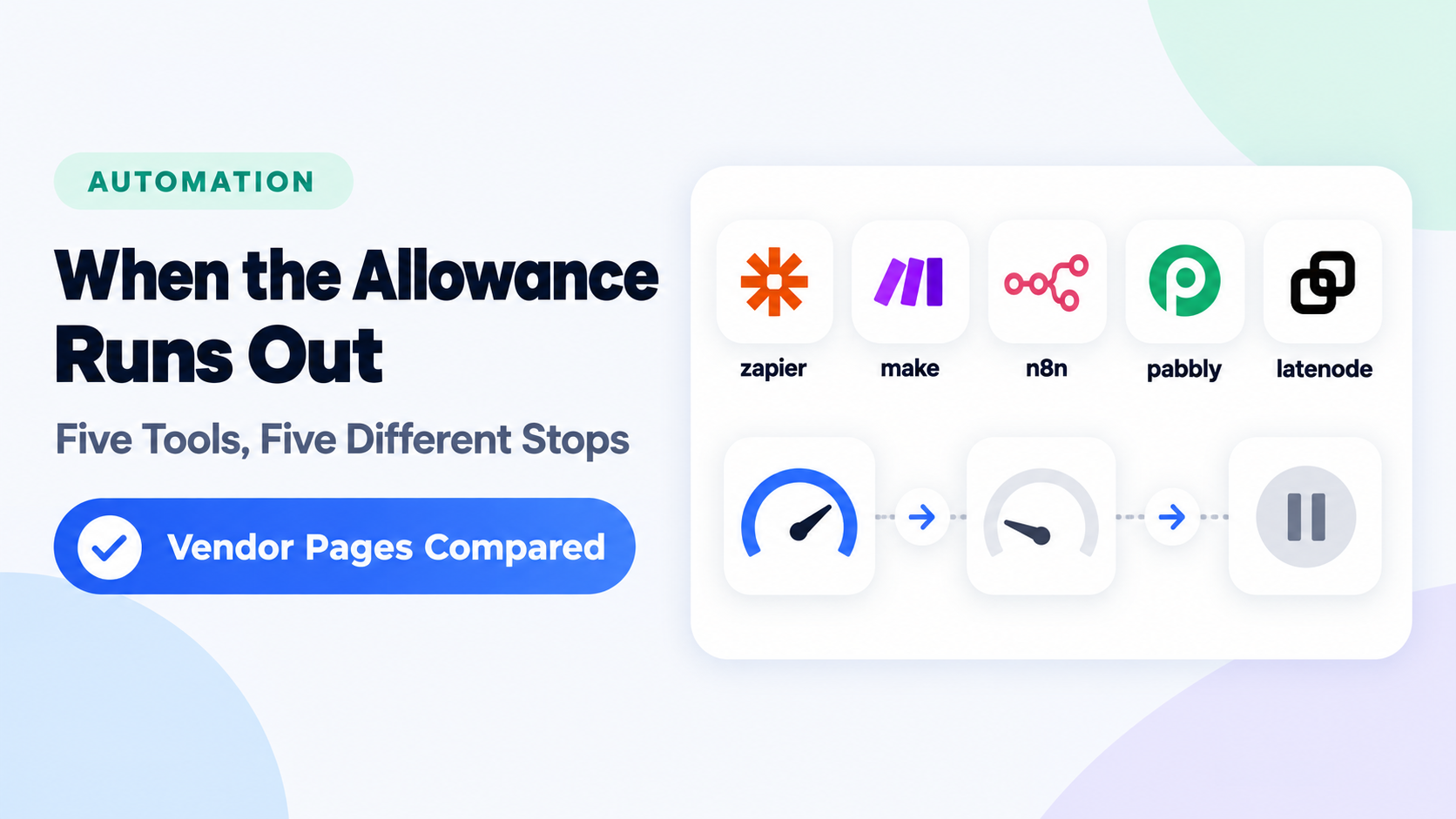
The documentation we read describes three outcomes for an automation whose allowance is gone. It can be held, with the event kept for later. It can be stopped, with whatever arrives next handled by some other rule. Or it can fail, once per execution, with no backlog to work through afterwards. Zapier, Make and n8n each document one of these, in their own words; held, stopped and failed are our names for the three. For Pabbly we could not find a statement of which of the three applies. Latenode documents the Pay as You Go answer — usage above the free allowance is billed onward — but not what a free account with no payment method meets at the same moment. It also sells a lifetime deal whose balance is drawn down before Pay as You Go, and we did not examine it. What Pabbly’s terms do give, on the Unlimited plan alone, is a way back: the account holder resets the count themselves, once a day.
Which of the three you meet depends on the tool. What you can do about it afterwards often depends on the plan as well — and the tool that publishes a named recovery action, with a window, a batch size and a cost, is also the one whose three pages disagree about whether a free account may follow it.
Quick Answer
Five questions decide how much a month of overrun actually costs you: which limit you hit, what happens to new runs, whether the unprocessed events survive, whether anything is re-run for you, and what it takes to get moving again. Here is the row for each tool and plan we could document.
| Tool and plan | New runs | Do the missed events survive? | Getting going again |
|---|---|---|---|
| Zapier Free | Held. No actions will run | Yes — trigger data is stored | New runs resume when the cycle resets or the plan is upgraded. Whether a free account can then replay the held ones is where three Zapier pages disagree |
| Zapier paid | With pay-per-task on — the default for accounts opened after January 2024 — runs continue to three times the plan’s limit, then stop. With it off, they are held at the limit | Yes for the runs that are held. Nothing we read says what happens to events once the three-times ceiling stops the workflows | Replay held runs manually, or let autoreplay handle errored ones |
| Make Free | Scenarios stop until credits are added | Webhook events queue; a polling scenario re-scans on resume | Wait for the reset. Extra credits are a paid-plan purchase |
| Make paid | Scenarios stop; only Enterprise carries the Credits overage protection row | Same as above; the queue is sized by the plan’s credits | Buy extra credits; manual purchase is for paid plans, auto-purchasing is Core, Pro and Teams only |
| n8n Trial / Starter / Pro | Attempted and failed immediately, once per execution. Triggers keep firing | No. There is no backlog | Retry each one by hand. Limits reset at the start of the calendar month |
| n8n Business / Enterprise | Keep running | Not applicable — nothing is missed | Business is billed per extra 300,000 executions and is marked Self-hosted only on the pricing page; Enterprise overage is set in the order form |
| Pabbly Unlimited | Not stated | Not stated | Clause 3.27: once the limit is reached, you can manually reset your tasks from your end once per day |
| Pabbly one-time | Not found on the pages we read | Not found | Not stackable or transferable; more needs a regular plan alongside. The ceiling is disputed between Pabbly’s own pages — the terms say 10,000 tasks, the sales page sells 20,000 a month |
| Pabbly Free / subscription | Not found on the pages we read | Not found | Pabbly’s help guide says to click on the “Upgrade” button and can purchase any suitable plan. Subscription tasks expire after 30 days either way |
| Latenode Free | Not found for an account with no payment method | Not found | Not found |
| Latenode Pay as you go | Billed onward; a spending limit you set stops new runs before they start | Not stated for blocked runs | Raise or remove your own limit |
Two things are worth saying about the Not found cells. They mean we could not verify an answer in the documentation we read, which is a smaller claim than saying the vendor publishes nothing. They sit on Pabbly’s free, subscription and one-time plans, and on Latenode’s free plan.
Held: Zapier Keeps the Event, and Its Pages Disagree About the Key
Zapier has a published answer for each of our five questions, and what it documents is a hold rather than a stop. Zapier will hold all actions for all Zap workflows in your account if you reach your task limit for the billing cycle. No actions will run. Nothing is discarded: Zapier stores the trigger data for held runs, so no data is lost. The same hold catches a trial ending or a plan dropping, and premium-app actions on a plan that does not include them.
Getting the held work back is replay, and replay is where the plan enters. Zapier’s own page: On the Free plan, manual replay is only available for Zap runs with an errored status. To manually replay Zap runs with other statuses, such as on hold, you need a paid plan. Autoreplay does not close the gap — Autoreplay will not replay Zap runs with an on hold status. So a free account that runs out keeps a pile of trigger data, and what it may then do with it is where three Zapier pages part company. The task-limit page says to wait for the billing cycle to reset and then manually replay your held Zap runs. The Zap limits page promises the same thing to everyone: Your Zap runs will be held, not lost. Zapier stores the trigger data, and you can replay held runs from your Zap History once you have available tasks. The replay page says Manually replaying on hold runs requires a paid plan. We cannot reconcile those sentences, and a free account is where the difference lands.
There is a clock on it either way. You must replay steps within 60 days of the initial trigger event, says the replay page; a different page, on Zap history, carries the same number for retention — Zapier can only guarantee a maximum of 60 days of Zap run data in your Zap history and will display up to 10,000 runs. Replaying a whole run is charged again: Any successful steps will count towards your task usage, even if they were already counted in a previous run. And the batch size depends on which replay you use. Replaying an entire run is capped: You can select up to 10 Zap runs to replay at the same time. Bulk replay from Zap history has a larger one: Select all (5000 at a time) to select up to 5,000 Zap runs.
The mechanism that keeps a Zap running past the limit is pay-per-task billing, and it is only available on paid Zapier plans. It has its own ceiling at three times the plan’s task limit, and what happens there is a stop rather than a hold: Zap workflows will stop running if your account reaches the maximum pay-per-task usage amount. The pricing page calls the same event a pause. Neither page calls it a hold, and the stored trigger data and the replay route belong to the hold at the plan limit, not to this ceiling. It can be switched off by anyone who would rather stop than overspend.
Where Zapier’s pricing page disagrees with itself. Its pricing FAQ answers How many tasks do I need? without naming a plan: When you reach your plan’s task limit, we’ll also switch you to pay-per-task billing. A second answer on the same page is conditional — it starts If you turn on pay-per-task billing — and the help centre scopes the feature to paid plans. A free-plan reader who stops at the first answer will be waiting for runs that are not coming.
One more hold exists before the task limit does, and it is one Zapier tells you how to clear: If you’re on a Free or trial Zapier plan, Zap workflows with polling triggers will be held if they exceed 200 requests every 10 minutes per Zap. You can replay them once the limit resets.
Stopped: Make Queues the Webhooks Up to a Limit, and Re-scans the Rest
Make stops when the organisation’s credits run out, on every plan except Enterprise, which is the one plan carrying the Credits overage protection row. Enterprise is not out of the woods either. Its continuation is bounded — Make’s own course says If you exceed your monthly usage of credits, your scenarios will be paused. If you are on an Enterprise plan, scenarios will continue to run for a limit, and no page we read prints that limit. And where an admin has set a per-team credit allocation, If the team reaches the established limit, their scenarios will be paused; a team with no limit set is not capped that way. What happens to the events arriving meanwhile depends on how the scenario is triggered.
A webhook scenario has a queue. The limit for the number of webhook queue items depends on your usage allowance, which is a part of your subscription. When it fills, Make rejects all incoming webhook data which is over the limit and answers 400. Polling scenarios get a different sentence: on resume, Scenarios that poll for data will also search for records since the last time they ran successfully. Make documents a queue only for webhooks, and nothing we read says a polling scenario has one; reading that as nothing to queue is ours, not Make’s. That is a real difference in what you lose, and it is decided by a choice made when the scenario was built.
The queue size is published per 10,000 credits. We could not verify the free plan’s queue size in the documentation we read — the usage-allowance table gives the figure against 10,000 credits, and a free month is a thousand. A free-plan reader would want that number, because it decides how many events survive a stop.
Nothing we found emails a free account before it stops. Make does warn inside the product: our own free account’s dashboard carried a banner it labelled You’ve used 75% of your free credits and, under it, When you reach your limit, all scenarios will be paused. Upgrade anytime to keep them running. That is a banner and not an email, and we saw it at one threshold only. The 75, 90 and 100 per cent credit emails Make documents sit on a page that opens This feature is available to Enterprise customers, and they are about a team’s allocated slice rather than the organisation’s own balance. Uninterrupted execution past the limit is an Enterprise row too, named Credits overage protection and marked Not included on Free, Core, Pro and Teams alike. The only other notification we found anywhere is for a failed payment. We checked seven pages: the pricing FAQ, the credits page, the extra-credits page, the subscription page, the credit-usage history page, the cancellation page and the pause page.
Buying your way out is also a paid-plan move, and the two halves have different scopes: manual purchase is for paid plans, while auto-purchasing is Core, Pro, and Teams plan only. Auto-purchasing is not open-ended either — Make limits auto-purchasing to the number of credits in your subscription. For example, if your plan has 80,000 credits, Make auto-purchases a maximum of 8 times — and the surcharge is on both routes: All extra credits include a 25% additional cost, whether you purchase them manually or through auto-purchasing. On the free plan the routes are the reset and an upgrade; the pricing FAQ lists You can upgrade your subscription before the end of the term first among the ways out. And credits do not accumulate while you wait — Credits expire at the end of the term, with one split worth knowing if you buy extra on an annual Core plan: your regular credits reset monthly, and any extra credits you purchase will also expire at each monthly reset — though a downgrade does carry unused credits into the new subscription, while a cancellation to Free does not.
Failed: n8n Builds No Backlog, and Says So
On Trial, Starter and Pro, n8n holds nothing for you, and its support documentation is blunt about it. Executions at the limit are not queued. They fail immediately with an error. There is no backlog. The error reads Execution limit reached. Consider upgrading your plan.
Meanwhile nothing switches off: Your workflows stay active and your triggers keep firing exactly as before: schedules, webhooks, and everything else. An over-quota account on those plans is not idle, it is actively failing — This continues for every execution while you are over your limit. Once per execution is not the same as once per trigger fire, and n8n’s documentation splits it by trigger type. Schedule Trigger nodes: Count one execution every time the node fires, regardless of outcome. Webhook Trigger nodes: Count one execution for every inbound request that activates the trigger. This includes requests with an empty body (such as {}). Polling nodes (like Google Drive Trigger): Count one execution only when new data is found. Polls that return no results don’t count as an execution. A polling workflow that finds nothing creates no execution, so it has nothing to fail. Retries, error-handler workflows and CLI-started executions are caught in it too, while a paid plan’s editor runs, chat executions and sub-workflows are not. Two mercies: Failed executions do not count against your execution quota, and All execution limits reset automatically at the start of each calendar month, regardless of your billing date.
Recovery is manual, one run at a time, from Overview > Executions — and only while the record survives: You can retry an execution only while n8n still stores it. n8n doesn’t store failed production executions if the workflow’s Save failed production executions setting is Do not save. n8n also offers a courtesy reset of the current month’s count, and it names the plans it covers: Trial customers (1,000 executions), Cloud Starter plan subscribers (2,500 executions), and Cloud Pro-1 plan subscribers (10,000 executions). Please note we can do this only once per customer. Pro-2 is not on that list. A Pro-2 monthly subscriber instead adds executions without talking to anyone, up to 500,000 a month; a Pro-2 annual subscriber has to email support.
The plan split here changes the outcome outright. Business and Enterprise do not stop at all: If you exceed your quota, rest assured your workflows will continue running without interruption, but overage charges may apply if you do not upgrade to the next usage tier. Trial, Starter and Pro get the immediate failure instead. The comparison table’s Overage fees row reads Capped against both Starter and Pro, which at a glance looks like a charge with a ceiling; its tooltip says the opposite, and settles the matter: Starter and Pro are capped and have no overages. Capped means it stops, not that it bills you up to a line.
There is no free n8n Cloud plan to run out of. The trial expires on its own after 14 days, then there is a 3-day grace period before your instance is stopped. The stopped instance is kept for another 5 days before it is deleted. Workflows stay downloadable for up to 90 days after your trial ends. The free way to keep running n8n is the self-hosted Community edition, which carries no n8n execution quota at all. The trial is free and does have one, at 1,000 executions.
Pabbly: One Plan Has an Answer, Under a Fair Usage Policy
Pabbly’s terms carry a recovery step the account holder performs themselves, and it belongs to exactly one plan. Clause 3.27, under the heading Pabbly Connect – Unlimited Tasks: You will initially receive 100,000 tasks in your Pabbly Connect account. Once your task limit is reached, you can manually reset your tasks from your end once per day. The clause that carries it is headed Fair Usage Policy, and it carries two conditions with it: the reset exists to prevent potential system abuse or accidental infinite loops, and the Unlimited Tasks feature is intended for one business only. You cannot use a single account to run automations for multiple businesses. An agency running client automations needs an account per client, and the daily reset comes with that. The policy is also Pabbly’s to change: Pabbly reserves the right to modify this Fair Usage Policy at any time, without prior notice.
For the free plan and the ordinary subscriptions we could not find an equivalent self-service reset. What Pabbly’s help guide gives those plans is the paid route: You can simply click on the “Upgrade” button and can purchase any suitable plan in order to add more tasks to your Pabbly Connect account. The product page’s FAQ asks what a task is, what an operation is, what a workflow is, and whether internal apps count — and never asks what happens when the tasks run out. We looked there, on the pricing page, on the one-time purchase page and in the terms.
The product page and the terms do not describe the same plan. The page selling the Unlimited plan says you don’t have to worry about task limits, hidden charges, or missing features, while the clause behind it starts you at 100,000 tasks and asks you to press a reset button once a day. The one-time plans carry a disagreement of their own: clause 3.22 caps a one-time purchase at 10,000 tasks, while the page that sells them lists a tier at 20,000 tasks a month. We report both rather than picking one. What the terms do say about the subscriptions is that the allowance will not wait for you: When you buy a Pabbly Connect subscription, the tasks assigned to your account are valid for 30 days. If you don’t use those tasks within this time, they’ll expire and won’t carry over to your next subscription cycle.
The free card settles a narrower question in its icons rather than its words: re-executing a workflow by hand is a check mark, and automatic re-execution of failed and skipped steps is a cross. Neither row says anything about runs that never happened because the tasks were gone. We read that card in a browser, because its check marks and crosses do not survive automated reading — the last ten rows of the free card are crosses, and a stripped-to-text copy makes them all look included.
Latenode: The Documented Stop Belongs to a Billed Account
Latenode’s documentation states the allowance and what follows it: On the Free plan you get 10,000 CPU seconds per month; after that, Pay as You Go rates apply. Its pricing FAQ asks the same question in its own words — What happens after 10,000 free CPU seconds? — and answers it for one case: On Pay as you go, usage after the free allowance is billed by marginal CPU-second brackets. The first 10,000 CPU seconds stay free every month, even after adding billing.
None of the three current Pay as You Go pages we read — the pricing FAQ, the CPU-seconds documentation and the Billing page — says what an account with no payment method does at that moment — whether its runs stop, queue, or fail. Pay as You Go rates presuppose a card. One older documentation page does answer the adjacent question: If there are no available credits, the scenario will not execute. We are not carrying it across, because that page is written in the credit model Latenode replaced — it prices a credit at 30 seconds of runtime and names the Starter, Grow and Prime plans, which Latenode’s billing page labels a legacy subscription. It carries no such notice itself, so a reader who finds it in one search will not know that. We are not going to guess the current answer for a tool we are paid to recommend.
One stop is documented, and it belongs to an account that has already added billing. You configure it: If you set a spending limit for CPU seconds on the Billing page and reach it, new scenario runs fail before they start. Fail before they start, not queue — and none of the pages describing this limit says the blocked runs are stored or replayable. Latenode uses two words for it: the documentation says the runs fail or do not start, while the pricing page’s FAQ says Usage pauses at your limit. Usage is not spending, and nothing on any of the three pages says the work waits. A second rule is not a stop but a demotion: If unpaid invoices exceed the platform hard limit (default $2 total failed charges), your Pay as You Go subscription is cancelled and you return to the Free plan. What the page states is the move to Free, not that the scenarios go on running there; an account that has already spent the month’s free CPU seconds is back in the gap above.
The free plan’s headline run count carries a qualifier worth keeping: the pricing page gives 10,000 scenario runs if runs average about 1 CPU second, where the documentation’s version of the same row drops the condition. On our own free account, a two-step run that succeeded on September 26, 2026 was metered at 2 CPU seconds against a duration of one second. A separate sub-second run on October 25, 2026 was billed the one-second minimum, and that one ended in an error. Two readings, one account, not a rate.
What to Check Before You Pick a Plan
Ask what happens to the events, not just how many you get. Held, stopped and failed are three different outcomes for the same month of overrun, and they keep different things. Zapier stores the trigger data of a held run. Make queues the webhook events and re-scans on a polling resume. n8n builds no backlog, though a failed execution can be retried only while n8n still stores it. The size of the allowance tells you when the behaviour starts, not what it is.
Check that recovery is on your plan, not just in the product. Zapier documents a named recovery action with a window, a batch size and a cost — and its replay page puts held-run replay behind a paid plan while its task-limit page tells a free account to replay after the reset. Make documents a queue and puts extra credits behind a paid plan. n8n documents a per-run manual retry; its courtesy reset is once per customer and covers Trial, Starter and Pro-1 but not Pro-2, and a Pro-2 monthly subscriber buys more executions instead.
Check who gets told, and when. Make documents its 75, 90 and 100 per cent credit emails on a page scoped to Enterprise customers. n8n’s approach-of-quota contact is for annual Business subscribers. Zapier names no plan for the emails it sends at the plan limit: the pricing page’s answer to What happens if I hit my task limit? opens We’ll email you when you’re close to reaching your plan’s task limit, and then again when you reach it, and the help centre’s Zap limits page says Zapier sends email notifications as you approach and reach your limit. The same pricing-page answer does scope a second set of emails, for the ceiling above that one: When you’re on pay-per-task billing, we’ll email you if you’re close to your plan’s maximum task limit and then again when you reach it. The pay-per-task sentence the help centre scopes to paid plans sits in a different answer on the pricing page, under How many tasks do I need? On Pabbly and Latenode we found no threshold notification on the pages we read.
If a webhook feeds the workflow, ask for the queue size in writing. On Make that number is what stands between a stopped scenario and lost events, and we could not verify the free plan’s figure on the pages we read.
Make’s free plan is where we watched a credit balance fall against a real workflow for the companion piece below. It is a perpetually free plan with 1,000 credits a month, and we have run scenarios on it and read the counter and the Credit Usage page for two articles now. We are not ranking the five free plans here: their units are tasks, credits and CPU seconds, and we have no conversion rule between them. What those credits are spent on while nothing is happening is in what automation costs when nothing happens.
FAQ
Does running out delete anything?
Not on the Zapier, Make and n8n pages we read; for Pabbly and Latenode we found nothing either way. Zapier keeps the trigger data for held runs and guarantees Zap history for up to 60 days. Make deletes webhook data as soon as a scenario processes it and keeps webhook logs for 3 days. n8n deletes nothing because of the quota itself, but it prunes execution logs as a matter of course: n8n automatically prunes execution logs after a certain time or once you reach the max storage limit, whichever comes first — 2,500 executions or 7 days on Starter, 25,000 or 30 days on Pro. Separately, an ending stops the instance, and the two endings differ. After a trial there is a 3-day grace period before the instance is stopped, and it is kept 5 days more. A cancelled subscription gets no grace period: the instance is stopped at the end of your billing period and deleted five days later. Either way there is a 90-day window — workflows stay downloadable after a trial, and backups are kept after a subscription.
Do the failed runs cost me anything?
On n8n, no — Failed executions do not count against your execution quota. On Zapier an action that errors or halts does not use a task either, though replaying an entire run charges its successful steps again. Make’s credit-usage page states the trigger rule without an exception for failures; we did not find a page that carves them out.
When does the allowance come back?
n8n resets independently of billing: All execution limits reset automatically at the start of each calendar month, regardless of your billing date. Zapier’s hold lifts when the billing cycle resets or the plan is upgraded. Make’s credits reset with the subscription term and expire at the end of it. On Pabbly’s Unlimited plan the account holder resets the count, once a day.
Sources
The vendor pages quoted above were read between October 31 and November 2, 2026, and the four pricing pages — Zapier, Make, Pabbly and Latenode — were re-read on the last of those days. Three of them keep part of their answer out of the page text: n8n’s overage row explains itself in a hover-only tooltip, Latenode’s pricing FAQ opens one answer at a time, and Make’s plan comparison renders in a shadow DOM. Those were read in a browser. The two account screens are from accounts we hold, on the dates given at the top of this page.
- Zap is not running — the hold at the task limit, at a plan change and at the end of a trial
- What is replay — the Free plan’s errored-only restriction, the 60-day window and the batch of ten
- Review run statuses — what On hold means and what is kept
- View and manage your Zap history — the 60-day retention guarantee and the 10,000-run display limit
- Replay Zap runs — the bulk replay of up to 5,000 runs from Zap history
- How pay-per-task billing works — paid plans only, and the 3x ceiling
- Zap limits — the polling-rate hold on Free and trial plans, and the replay promise that carries no plan caveat
- Zapier pricing — the two FAQ answers that scope pay-per-task differently
- Webhooks (Make) — the queue, its size rule and the 400 response
- Credits per team management — the 75/90/100% emails, and the Enterprise scope they sit in
- Extra credits (Make) — buying more, manually or automatically, is a paid-plan option
- Introduction to Operations and Credits (Make Academy) — the bound on Enterprise’s continuation past the limit
- Cancel your subscription (Make) — unused credits are not carried to Free
- Make pricing — what happens if you run out of credits, credits expiring at the end of the term, the downgrade transfer, and the Credits overage protection row
- Can you reset my executions? — immediate failure, no backlog, triggers keep firing, the courtesy reset and the plans it covers
- Understand executions (n8n) — how executions are counted per trigger type, and the polls that count for nothing
- View all executions (n8n) — a retry needs the failed execution to still be stored, and what a retry re-runs
- Manage your data (n8n Cloud) — the routine pruning of execution logs, by plan
- n8n pricing — the Business exemption, and the Overage fees row with its tooltip
- How do I cancel my trial? — the 3-day grace period and the 90-day export window
- I want to cancel my subscription — what stops and what is restorable
- Choose how to use n8n — the self-hosted Community edition
- How is task usage measured in Zapier? — actions that error or halt do not use a task
- How features use credits (Make) — the trigger rule, stated without an exception for failures
- Pabbly terms and conditions — clause 3.22 on expiry and the one-time cap, and clause 3.27, the Fair Usage Policy that carries the Unlimited reset and its one-business condition
- How to add more tasks (Pabbly Docs) — the upgrade route for a free or subscription account
- Pabbly Connect — the FAQ that never asks this question, and the free card’s re-execution rows
- Latenode pricing — the FAQ question, and the run-count qualifier
- What are credits (Latenode) — the free allowance, and runs blocked by a spending limit
- Usage statistics (Latenode) — the superseded credit model we quote but do not carry across: one credit per 30 seconds, and the Starter, Grow and Prime minimum charges
- Latenode billing — the unpaid-invoice drop back to Free


Comments