By the SmartToolCompass editorial team · Updated September 5, 2026 · Hands-on tested September 5, 2026
Hands-on tested during Zapier’s 14-day Pro trial. We built and published a two-step Google Sheets → Gmail automation and confirmed a successful live run.
Disclosure: We may earn a commission if you purchase through some of the links on this page, at no additional cost to you. Zapier links on this page are standard links unless labeled otherwise. Our testing, findings, and verdicts are written independently of any commercial relationship.
Quick Verdict
Zapier is a reasonable first automation platform for a freelancer who wants to connect two mainstream apps and stop copying data between them by hand. We created a new account on September 5, 2026 and tested Zapier during its 14-day Pro trial, building a Google Sheets to Gmail automation manually, publishing it, and confirming that a real email arrived after a new spreadsheet row was added. The workflow ran end to end without us needing to write code or read documentation mid-build.
Its clearest strength is the structure of the editor. Zapier walks you through one step at a time and pulls real records out of your spreadsheet so you can see the actual data you are mapping. In our build, Zapier made us test each step before publishing. For a first-time automation user, that removes most of the guesswork.
Its clearest drawback is economic rather than technical. Zapier’s free tier allows 100 tasks per month and Zaps with one trigger and one action only. Adding a second action, a filter, a webhook, or a premium app requires a paid plan. Freelancers running higher volumes, or who want more control over how a workflow is built, may find that Make, n8n, and Pabbly Connect can offer better economics as workflow volume or complexity grows.
Zapier at a Glance
| Best for | Freelancers automating a first, simple two-app workflow between mainstream SaaS tools |
| Free plan | Yes. 100 tasks/month, two-step Zaps (one trigger, one action), 15-minute polling for polling triggers, single user (researched — official) |
| Starting price | Professional listed from $19.99/month; Team from $69/month. See the pricing section for an important billing-basis caveat (researched — official) |
| Automation model / task model | Task-based. Every successful action step consumes a task. Triggers never consume tasks (researched — official) |
| No-code / low-code | No-code by default. Code steps and webhooks exist but sit on paid plans (researched — official) |
| App integrations | 9,000+ (researched — official) |
| Main strength | Guided trigger → action editor; in our build, steps had to be tested before publishing (hands-on observed) |
| Main drawback | Free tier caps at one action per Zap and 100 tasks/month; costs scale with volume (researched — official) |
| Testing status | Hands-on tested — 14-day Pro trial, Google Sheets → Gmail workflow |
How to read the Free plan row above. Our newly created account was on the Zapier Pro plan trial during this test, so the Free plan details in this table and throughout the article come from Zapier’s current official documentation, not from our own testing. We did not test Zapier on the Free plan.
Try Zapier free — no credit card required at signup, per Zapier’s documentation.
What Is Zapier?
Zapier is a hosted automation service that connects apps you already use so that an event in one triggers an action in another. The unit of work is called a Zap: one trigger, then one or more actions.
The model is deliberately linear. Something happens (a new row, a new email, a new form submission), and Zapier does something in response (send a message, create a record, update a sheet). You choose apps from a directory, connect your accounts, map fields between them, and turn the Zap on. Zapier advertises integrations with more than 9,000 apps, one of the largest published app catalogs among mainstream automation platforms.
Freelancers usually arrive at Zapier for one of two reasons. Either they have a specific repetitive handoff between two tools they want to eliminate, or the SaaS product they already pay for lists Zapier as its supported automation partner.
Where it sits against the alternatives is worth understanding before you commit. Make gives you a visual canvas with more branching and data manipulation, and can offer better economics as workflows become more complex. n8n is developer-leaning and can be self-hosted, which changes the cost structure entirely. Pabbly Connect sells lifetime deals and counts usage differently. We have built the same Google Sheets to Gmail workflow in all three, and the comparisons are linked throughout this review.
What We Tested
We built one automation manually, tested it inside the editor, and then ran it live after publishing. We later performed an additional live run to measure task usage.
Google Sheets (Name / Email / Message)
              ↓
      New Spreadsheet Row
              ↓
            Zapier
              ↓
       Gmail Send Email
              ↓
       Real email received
Our testing environment. We created a new Zapier account on September 5, 2026, which placed us on the Zapier Pro plan trial, showing an expiry date of September 19, 2026 and an allowance of 1,000 tasks. All hands-on testing described in this review was conducted during that trial. We are not presenting any of it as a Free plan test.
We built the reviewed workflow manually. We did not use a prebuilt template, and we did not use Zapier’s AI Copilot to generate it. We selected the trigger app, the trigger event, the action app, and the action event ourselves, and mapped every Gmail field by hand. The point was to see what the platform is like when a freelancer builds something from scratch rather than accepting a suggestion. We did test Copilot afterward as a separate, supplemental exercise, and we report that separately so the two are not confused.
We also measured task usage around an additional live run. Our account increased from 1 of 1,000 tasks used to 2 of 1,000 after one successful Google Sheets → Gmail execution.
During onboarding, Zapier asked what our role was. We selected Business Owner, and Zapier responded with a “Top apps for Business Owner” screen. We selected Google Sheets and Gmail from that list.
What this test proves: that a new Zapier account on the Pro trial can build, test, publish, and successfully run a two-step Google Sheets to Gmail automation; that the published Zap detected a new row and delivered a real email; and that one such run increased task usage by one.
What this test does not prove: anything about the Free plan, or about multi-step workflows, filters, paths, webhooks, code steps, Tables, Forms, Agents, error recovery, team collaboration, customer support quality, sustained reliability, or behavior at volume. We did not test any of those. Where they appear in this review, they are labeled as researched from Zapier’s documentation. Our separate Copilot test is scoped in its own section.
On the Free plan question. As an official product fact, the shape of the workflow we built sits inside Zapier’s published Free plan limits: the Free plan permits two-step Zaps consisting of one trigger and one action, and neither Google Sheets nor Gmail is a premium app. That is a documentation-based statement about what the Free plan allows, not a report of our own experience. We did not run this Zap on the Free plan and have not verified how it behaves once a trial period ends.
Setup and Ease of Use
Account creation and onboarding ran straight through to a usable editor.
Building the trigger followed a fixed sequence. We selected Google Sheets as the trigger app, then chose New Spreadsheet Row as the trigger event. Zapier then asked us to connect a Google account, which routed through Google’s standard OAuth consent screen. Once connected, Zapier presented two dropdowns: one for the spreadsheet, one for the worksheet inside it.
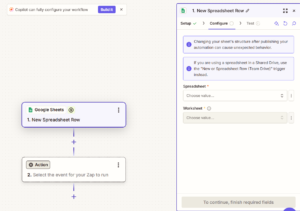
Zapier requires you to choose a spreadsheet and worksheet before testing the trigger. Both are selected from dropdown fields rather than entered manually.
The trigger test is the part worth describing precisely, because it is where the experience differs from reading a tutorial. When we ran the test, Zapier retrieved actual records from our spreadsheet and displayed them. Our columns were Name, Email, and Message, and Zapier exposed each of those as a named field carrying our real test values: Test User, smarttoolcompass.test@gmail.com, and Hello from Zapier.
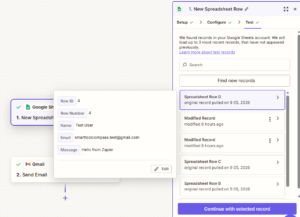
The trigger test returns a real row rather than placeholder data. Seeing the actual values is what makes the next step, field mapping, concrete instead of abstract.
From a first-time user’s perspective, that retrieval step does real work. You are not asked to imagine what data will flow through the automation. You can see it, named, before you build anything on top of it. That is a meaningful design decision, and it is the main reason the build was straightforward for us.
We are not going to call the setup effortless. It worked, and it worked without us consulting documentation, but our workflow was also the simplest possible shape: two steps, two mainstream apps, no conditional logic. A build with branching or data reformatting would be a different test, and we have not run it.
Building a Simple Automation in Zapier
Zapier presents a Zap as a vertical stack of steps. You complete one before the next becomes configurable, which enforces an order on the build.
1. Google Sheets trigger. App, then event (New Spreadsheet Row), then account connection, then spreadsheet and worksheet selection, then test.
2. Gmail action. We added Gmail as the second step and selected Send Email as the action event.
3. Account connection. Gmail required its own account authorization, separate from the Google Sheets connection, even though both use the same Google account.
4. Configuring the email. This is where the mapping happens. Zapier presented the Gmail send fields and let us insert values pulled from the trigger step:
| Gmail field | What we mapped |
|---|---|
| To | Email field from Google Sheets |
| Subject | Thanks, [Name] — static text plus the Name field |
| Body | Message field from Google Sheets |
| Body type | Plain |
The Subject line is the useful example here. Zapier let us combine literal text with a mapped field in the same input, so a static “Thanks,” could sit in front of a dynamic name without any formatting step in between.
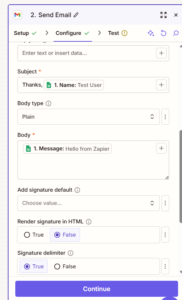
Fields from the Google Sheets trigger are inserted directly into Gmail’s inputs. The Subject field demonstrates that static text and mapped data can be mixed in one input without an intermediate formatting step.
In our build, Zapier would not let us publish without testing the Gmail step first. That is a design choice we appreciated, and it is covered in the next section.
Did It Work?
Yes, in both the editor and live after publishing. We are separating these because they prove different things.
Editor Test
We ran Zapier’s test on the Gmail step. It succeeded, and it sent a real email rather than simulating one.
The received message contained:
- Subject: Thanks, Test User
- Body: Hello from Zapier
This confirmed the mapping was correct: the Name field had resolved into the subject line, and the Message field had resolved into the body.
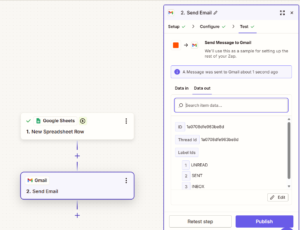
Caption: The editor test is not a dry run. It authenticates against the connected Gmail account and sends an actual message, which is what allows the mapping to be verified before publishing.
Live Test
We then published the Zap. Zapier displayed “Zap published” and “Success! Your Zap is live!”
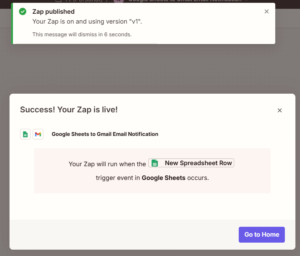
Caption: Publishing turns the Zap on so it can respond to live trigger events. Everything after this point in our test was triggered by real spreadsheet activity, not by a manual test button.
To test the published automation, we added a new row to the spreadsheet:
- Name: Test User
- Email: smarttoolcompass.test@gmail.com
- Message: Hello from Zapier Live
Zapier’s Zap Runs and Run Details reported:
- Status: Successful
- Google Sheets step: Found 1 new Spreadsheet Row in Google Sheets
- Gmail step: Sent 1 new Message to Gmail
The Run Details “Data In” panel for the Gmail step showed exactly what was handed to Gmail:
- To: smarttoolcompass.test@gmail.com
- Subject: Thanks, Test User
- Body: Hello from Zapier Live
And the Gmail inbox received a real message:
- Subject: Thanks,Test User
- Body: Hello from Zapier Live
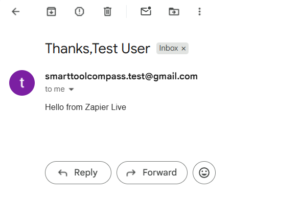
The final proof. A row added to a spreadsheet produced a delivered email with correctly resolved dynamic values, with no manual intervention between the two.
This was a genuine end-to-end live execution after publishing: new row → Zapier detected it → Gmail action ran → email arrived.
Key Features That Matter for Freelancers
We are only covering what changes a freelancer’s decision. Most product capability claims in this section are based on Zapier’s documentation. Copilot is the exception: we tested it ourselves and report that separately below.
App integrations. Zapier lists 9,000+ app connections. If you use a niche SaaS tool, a catalog that size makes it likely Zapier already supports it, though that is worth checking against your own stack rather than assuming. We verified only Google Sheets and Gmail, which both worked.
Multi-step workflows. Zapier’s documentation places multi-step Zaps behind paid plans; the Free plan allows one trigger and one action. We did not test a multi-step workflow. This is the single most consequential free-plan boundary for a freelancer, because most useful automations involve more than one action.
Filters and Paths. Zapier documents Filter and Paths steps as not counting toward task usage, which is genuinely favorable compared with platforms that bill every operation. We did not test Filters or Paths. Note that because these are additional steps in a Zap, using them implies a workflow longer than the Free plan’s two-step limit.
Webhooks. Zapier’s pricing page lists webhooks among Professional plan features. We did not test webhooks.
Premium apps. Zapier reserves a set of apps it designates as premium for paid plans. Google Sheets and Gmail are standard apps rather than Premium apps, so the apps themselves do not require a paid plan. We did not test any premium app.
Trigger speed, and a distinction worth knowing. Zapier documents a 15-minute polling interval on the Free plan for polling-based triggers, improving to 2 minutes on Professional and 1 minute on Team and Enterprise. Our Google Sheets “New Spreadsheet Row” trigger is listed by Zapier as an Instant trigger, so this limit did not apply to the workflow we tested. The distinction is easy to miss, because Zapier ships both kinds under similar names: “New Spreadsheet Row” is Instant, while “New Spreadsheet Row (Team Drive)” is polling. Check the Instant or Polling label on the trigger you actually plan to use before assuming a plan’s polling interval affects you. We did not measure our own trigger latency and are making no claim about how fast it ran.
AI and newer products. Zapier now offers Agents, Chatbots, Tables, Forms, Canvas, MCP, and an SDK. As of June 2026, Zapier moved AI steps, code, and SDK usage onto the same task-based billing model, with rates that vary by AI model tier and code runtime. We tested none of these. For most freelancers evaluating a first automation, they are not the deciding factor. We did test Copilot, Zapier’s in-editor AI assistant, which is covered next.
We Also Tested Zapier Copilot
After building and publishing the workflow by hand, we ran a separate test of Zapier Copilot to see whether the same automation could be produced from a plain-English description. Copilot is designed to reduce the blank-canvas problem for first-time users, which is the part of the job a freelancer building a first automation is most likely to want help with.
We gave Copilot this prompt:
“When a new row is added to Google Sheets, send an email with Gmail using the Email column as the recipient, the Name column in the subject, and the Message column in the body.”
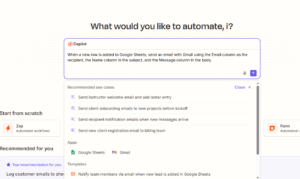
We gave Zapier Copilot a plain-English instruction describing the same workflow we had already built manually.
Copilot responded in about five seconds and proposed a two-step Zap: Google Sheets New Row, then Gmail Send Email. It correctly identified both apps, chose a new-row trigger, chose the Send Email action, and recognized the app accounts we had already connected. We clicked Continue with Zap Editor without manually adding any apps or steps ourselves.
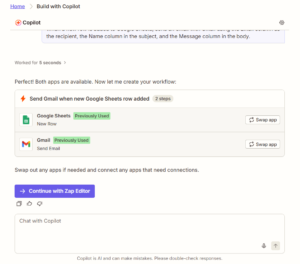
Copilot identified the correct two apps and basic trigger-to-action structure in about five seconds.
The Zap was not ready to publish. In the editor we found the spreadsheet and worksheet still unselected, and the Gmail To, Subject, and Body fields still unmapped, with warning icons on the incomplete steps. Copilot had also added a step we did not ask for: although it described the workflow as two steps, the editor showed three, with Gmail Send Email appearing twice.
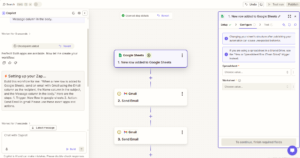
The generated Zap still required manual configuration, and Copilot unexpectedly added a second Gmail Send Email step.
We stopped the Copilot test here. We did not finish configuring or publish the Copilot-generated Zap, because the question we were answering was how far Copilot gets on its own, not whether a human can finish what it starts.
The practical verdict. Copilot got the basic structure right in seconds, but it did not produce a publish-ready Zap. We still needed to select the spreadsheet, map the Gmail fields, and remove an unexpected duplicate Gmail action. For a beginner, Copilot can reduce the blank-canvas problem. It did not remove the need to understand and review the workflow. That last point is the one worth weighing: a duplicate Send Email step could result in duplicate emails if you failed to catch it before publishing.
Zapier Pricing
Pricing checked on September 5, 2026 against zapier.com/pricing and Zapier’s Help Center.
Zapier’s pricing page currently lists Free at $0, Professional starting from $19.99/month, and Team starting from $69/month, with Enterprise quoted on request. The final price depends on the task volume you select and on whether you choose monthly or annual billing, with annual advertised as saving 33%. Check both settings on the pricing page before budgeting, since the headline figure moves with them.
The Free plan
Everything in this subsection is from Zapier’s official documentation. Our hands-on test ran during the 14-day Pro trial, so we have no first-hand experience of the Free plan to report.
Zapier’s Help Center (updated August 21, 2026) documents the Free plan as:
- 100 tasks per month, shared between Zap workflows and MCP server actions
- Unlimited Zaps, Tables, and Forms
- Two-step Zaps: one trigger, one action
- 15-minute polling interval for polling-based triggers
- Single user
- 2,500 Tables records, 10 form pages
- Drafts, custom test records, and Copilot
Older articles claiming the Free plan caps you at five Zaps are out of date. Zapier’s current documentation says unlimited Zaps, with the meaningful limits being task volume and step count.
What counts as a task
This is where Zapier’s model is more freelancer-friendly than its reputation suggests. Per Zapier’s documentation:
Counts as a task: every successful action step.
Does not count: triggers, polling, Filter steps, Paths steps, Formatter, Delay, Looping, Digest, Storage, Zapier Manager, Tables and Forms steps, and any action that errors or is halted.
Some products bill at different rates: Zapier MCP charges 2 tasks per successful tool call, Lead Router charges 5 tasks per routed lead, and AI by Zapier varies by model tier.
How Many Tasks Did Our Test Use?
Pricing pages explain the task model in the abstract. We checked what it actually did to our counter.
For this measurement we ran the published Zap a second time. Before that additional live run, our account was on the Zapier Pro plan trial, expiring September 19, 2026, showing 1 of 1,000 tasks used.
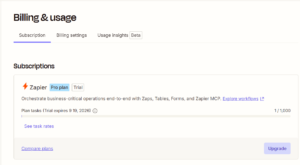
Before our live task-usage test, our Zapier Pro trial showed 1 of 1,000 tasks used.
We then added one new row to Google Sheets. The published Zap ran, and Gmail delivered the message. Afterward the counter read 2 of 1,000 tasks used.
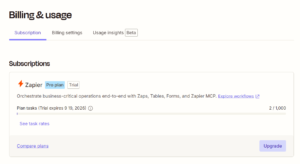
After one successful additional Google Sheets → Gmail live run, task usage increased from 1 to 2.
In our test, one successful Google Sheets → Gmail live run increased Zapier task usage from 1 to 2, meaning this workflow used one task per successful run.
That result applies to this workflow, not to Zapier generally. Ours has a single action. A Zap with three actions consumes tasks at a different rate, and Zapier documents varying rates for AI steps, code, MCP calls, and Lead Router.
Why it matters when you are comparing plans: the number on the pricing page is only useful once you know what one run of your workflow costs. For a single-action Zap like ours, a plan’s task allowance is effectively a cap on runs. If this were your only task-consuming automation, the Free plan’s documented 100-task allowance would cover up to roughly 100 successful email runs per month. The per-run cost is measured; extending it to the Free plan is arithmetic from Zapier’s published limits, since we tested on the Pro trial rather than on Free. Before choosing a tier, count the actions in the workflows you actually intend to build and multiply.
The practical consequence
On a paid plan, a Zap with two successful action steps uses two tasks per run, so the same task allowance supports roughly half as many runs as a one-action Zap. The Free plan does not allow that two-action workflow in the first place. That is the shape of the ceiling for a freelancer whose automation grows past a single action: the step limit stops you before the task math does, and once you have paid to get past the step limit, the task math starts consuming your allowance faster.
When you exceed a paid plan’s task allowance, Zapier switches you to pay-per-task billing at a higher per-task rate, up to a hard ceiling of three times your plan’s included tasks, after which runs are held until the billing cycle resets. You can turn pay-per-task off, in which case runs are held at the limit instead.
Against the alternatives
Make bills operations rather than tasks, and its free tier allows multi-step scenarios, which is the specific thing Zapier’s free tier does not. n8n’s self-hosted Community Edition removes n8n Cloud’s per-execution billing, though you take on hosting and maintenance costs instead. Pabbly Connect uses a different task model, where triggers and several internal steps do not consume tasks, and it also offers lifetime plans, which changes the arithmetic for anyone thinking in multi-year terms. Our Make vs Pabbly Connect comparison goes through the billing models side by side.
What We Liked
The trigger test returns real data. Zapier pulled actual rows from our spreadsheet and exposed Name, Email, and Message as named fields. Mapping was a matter of picking the right field, not guessing at a data structure.
Mixed static and dynamic input. Building Thanks, [Name] as a subject line required no formatting step. Literal text and mapped fields coexist in the same input.
Testing came before publishing. In our build, Zapier required us to test the steps before it would let the Zap go live. For a first-time user, that catches mapping mistakes at the point where they are cheap to fix.
Run Details show resolved values. After the live run, we could see exactly what was passed into Gmail, not just that the step succeeded. That is the information you actually need when something goes wrong.
Task usage is visible and verifiable. We could check the counter before and after a run and see it move by exactly one. Being able to confirm what an automation actually costs, rather than trusting a pricing page, matters on a platform that bills by task.
Where Zapier Falls Short
The two-step ceiling on Free is restrictive (researched — official). One trigger and one action covers our test workflow and very little else. Most real freelance automations, such as logging a result after sending a notification, or filtering out rows that should not trigger anything, need more steps. This is the boundary most freelancers will hit first.
Task-based pricing compounds with workflow complexity (researched — official). Every additional action multiplies task consumption against the same allowance. A three-action Zap burns tasks three times as fast as ours did.
Core plumbing sits behind the paid tier (researched — official). Webhooks and premium apps require Professional. If your work depends on a webhook from a client’s system, Zapier’s free tier is not an option at all.
Polling triggers can react more slowly on Free (researched — official). Zapier documents a 15-minute polling interval on Free versus 2 minutes on Professional. This applies to polling triggers, not to triggers Zapier labels Instant, so whether it affects you depends on which trigger your workflow uses. For time-sensitive work built on a polling trigger, that gap is the upgrade trigger.
Less structural control than the alternatives (researched, plus comparison to our own testing). The linear step model that made our build straightforward is the same thing that limits you later. Make’s canvas and n8n’s node graph expose more of the workflow’s shape. Our Make vs n8n comparison covers what that difference feels like in practice.
The headline price needs decoding (observed during research). The advertised starting price shifts with both the task-tier selector and the monthly/annual toggle, so “from $19.99/month” is not a figure you can budget against without setting both. Minor friction, but real when comparing platforms.
Who Zapier Is Best For
Freelancers building their first automation. The guided step-by-step editor, and being made to test before publishing, suit someone approaching automation for the first time. We can only speak to the Zapier side of that: this was our first Zapier build, and it succeeded without documentation.
Solopreneurs connecting mainstream SaaS apps. If your stack is Google Workspace, Slack, Stripe, Notion, and similar, Zapier’s 9,000+ integrations mean you are unlikely to find a gap in that kind of mainstream stack.
Anyone whose vendor documents Zapier specifically. Many SaaS products publish Zapier templates and support Zapier first. That support asymmetry is a legitimate reason to choose it.
Freelancers with low, predictable automation volume. If your simple single-action workflows stay within roughly 100 successful one-action runs per month, with no significant task usage elsewhere, the Free plan may be enough.
Who Should Skip Zapier
Anyone expecting high volume on a small budget. Task-based billing scales against you. If you are running hundreds of actions per month, the per-unit economics of Make or Pabbly Connect deserve a serious look.
Anyone who needs more than one action for free. The two-step limit is decisive. Make’s free tier permits multi-step scenarios, which is a categorical difference rather than a matter of degree.
Anyone who wants self-hosting or data control. Zapier is hosted only. If your client work requires you to keep automation data on infrastructure you control, n8n’s self-hosted option is the more relevant alternative.
Anyone who wants to see and shape the whole workflow. If you think in branches and data transformations rather than linear steps, Zapier’s model will feel constraining before its pricing does.
Anyone whose workflow depends on webhooks from day one. That is a paid feature, so the free evaluation path is closed.
Zapier Alternatives
We have hands-on tested all three of the alternatives below using the same Google Sheets to Gmail workflow described in this review, on the same Google account and spreadsheet structure. That consistency is the point: the comparisons are not assembled from other people’s reviews.
Make
Choose Make if you want more workflow structure without paying for it immediately. Make’s free tier allows multi-step scenarios, which is precisely the constraint that bites hardest on Zapier’s free plan, and its visual canvas shows the whole workflow at once rather than as a vertical list. The tradeoff is a steeper first build.
→ Make Review for Freelancers: We Built a Real Automation on the Free Plan
n8n
Choose n8n if you want control over where your automations run. Its self-hosted Community Edition removes n8n Cloud’s per-execution billing, although you still take on hosting and maintenance costs. It is the most technical of the four and the best fit for freelancers who are comfortable with a node-graph editor and are automating client work with data-handling requirements.
→ n8n Review for Freelancers: We Built a Real Automation on the Cloud Trial
Pabbly Connect
Choose Pabbly Connect if the recurring subscription is the thing you object to. It uses a different task model, where triggers and several internal steps do not consume tasks, and it also offers lifetime plans, which changes the long-run arithmetic for a solo operator. Its integration catalog is smaller than Zapier’s, which is the tradeoff to check against your specific stack.
→ Pabbly Connect Review for Freelancers: We Built a Real Automation
If you have already narrowed the field, our n8n vs Pabbly Connect comparison puts those two options directly against each other.
Is Zapier Worth It for Freelancers?
Our test proved a specific and limited thing: a first-time Zapier user can create an account, build a two-app workflow by hand, publish it, and have it work correctly against real data.
What our test did not address is the question that actually determines cost, which is what happens on the second, third, and tenth automation. That is where Zapier’s model asserts itself. Every additional action is a task, multi-step workflows require paying, and webhooks require paying. The platform is built so that the first workflow is easy and growth is billable.
For a freelancer with a small number of simple, mainstream automations, that is a fair trade. You are paying for a guided editor, an enormous integration catalog, and the reasonable expectation that whatever SaaS tool you adopt next will support Zapier. If your automation needs stay modest, you may never feel the ceiling.
For a freelancer whose automations are growing, or who is automating client delivery work at volume, the calculation changes quickly. Make gives you multi-step workflows on its free tier. Pabbly Connect gives you different long-run economics. n8n gives you the option to move off per-execution billing by self-hosting, if you are willing to run the server. All three ask more of you upfront, and all three can offer better economics depending on workload, hosting choice, and workflow structure.
Final Verdict
Choose Zapier if you are building your first automation, your apps are mainstream, you value a guided step-by-step editor, and your volume is low enough that task-based billing stays comfortable.
Consider an alternative if you need more than one action without paying, your automation volume is growing, you need webhooks or self-hosting, or you want to see and control the full shape of a workflow rather than a linear sequence of steps.
Our hands-on test worked. We built a Google Sheets to Gmail Zap manually during Zapier’s 14-day Pro trial, published it, added a new row, and a correctly personalized email arrived, with Zapier’s Run Details confirming both steps succeeded. In a separate additional live run, we also watched the task meter move from 1 to 2, confirming that this workflow used one task for that successful run. Separately, Copilot built the right skeleton from a plain-English prompt in seconds, but left the configuration unfinished and added a duplicate Gmail step we would have had to remove. On the narrow question of whether Zapier does what it says for a simple two-app workflow, the answer from our testing is yes, provided you still review what gets built.
The broader question is whether that simplicity is worth its pricing model over time, and that depends entirely on where your automation work is heading. If it stays small, Zapier is a defensible choice. If it grows, read our hands-on reviews of Make and Pabbly Connect before committing, because the difference compounds monthly.
Try Zapier free and build one workflow before you decide. Signup requires no credit card, per Zapier’s documentation.

Comments