By the SmartToolCompass editorial team · Updated August 23, 2026 · Hands-on tested August 23, 2026
Disclosure: We may earn a commission if you sign up through links on this page, at no additional cost to you. Commissions never affect our testing or our recommendations.
Quick Verdict
Make is a strong fit for freelancers who want to connect the apps they already use — a spreadsheet, an inbox, a form, a CRM — without paying developer money or learning to code. Its strength is the visual canvas: you can see every step of a workflow and exactly where data moves. Its weakness is that flexibility has a price, and that price is attention. Credits are consumed per module action, so cost depends on how you build, not just which plan you pick.
We tested this ourselves. We created a new account, chose the beginner onboarding path, and built a Google Sheets to Gmail automation by hand on the free plan. It ran, and the email landed. In that first workflow, Make’s visual layout made the flow of data easy to follow — though one configuration step made us stop and think, and we’ll get to it below.
Make at a Glance
| Best for | Freelancers and solopreneurs connecting everyday apps with visual, multi-step workflows |
| Free plan | Yes — 1,000 credits/month, 2 active scenarios, no time limit |
| Starting price | $9/month for 10,000 credits (Core, annual billing) |
| No-code / low-code | No-code by default; optional JavaScript and Python via the Make Code app |
| Main strength | Visual builder that shows the whole workflow and the data passing through it |
| Main drawback | Credit consumption depends on how a scenario is built, which takes some learning |
| Testing status | Hands-on tested — free plan, first-workflow scope (see What We Tested) |
What Is Make?
Make is a workflow automation platform, formerly called Integromat and now owned by Celonis. You build automations — Make calls them scenarios — by dropping modules onto a canvas and wiring them together. One module watches for something to happen, the next ones act on it.
Make lists over 3,000 pre-built app integrations, along with routers, filters, webhooks, and a set of AI tools. It competes most directly with Zapier on the no-code side and n8n on the developer side.
What We Tested
We signed up for a new Make account and went through the standard onboarding. We identified ourselves as a beginner, chose “Personal productivity” as the category, and picked “Just me” for workplace size. When onboarding asked which apps we planned to use, we selected Google Sheets and Gmail.
Then we built a scenario that a freelancer would plausibly want:
New row added in Google Sheets
        ↓
Make's "Watch New Rows" trigger detects it
        ↓
Gmail "Send an email" runs
        ↓
Email column becomes the recipient
Name column goes into the subject line
Message column goes into the body
We built it manually, module by module. We did not use Maia, Make’s conversational AI builder, because we wanted to know what the platform feels like when you assemble a workflow yourself.
This was intentionally a first-workflow test. The question we set out to answer is the one most freelancers actually have before signing up: can a non-engineer get a real automation running from a fresh account? That scope covers onboarding, app connections, trigger configuration, field mapping, execution, and basic result checking. It does not cover complex branching workflows, long-running production use, load, AI agents, routers, or webhooks — none of which we touched in this round.
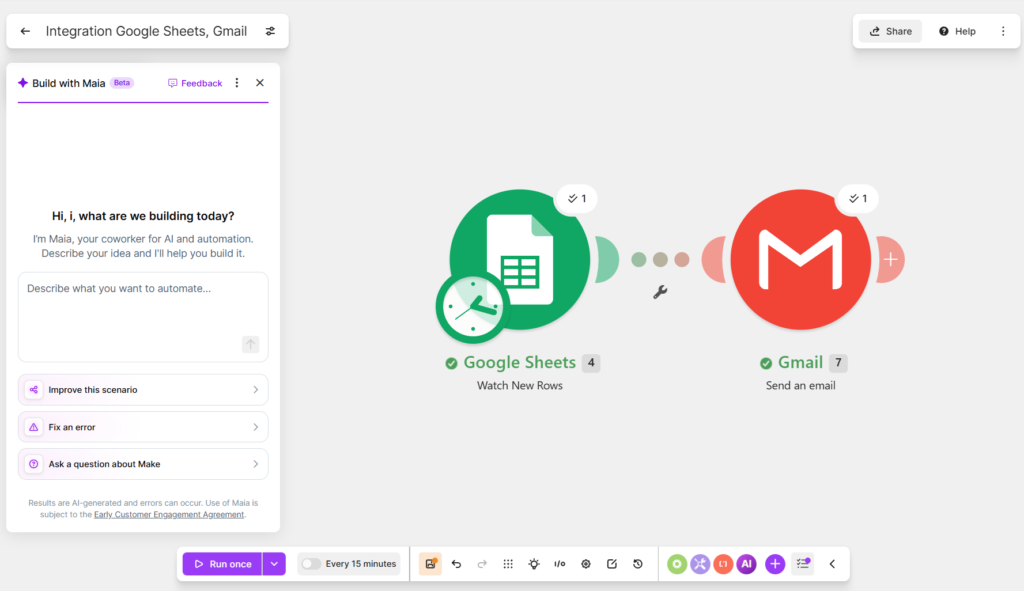
Our test scenario connected Google Sheets to Gmail and successfully processed one new row.
Setup and Ease of Use
The onboarding is genuinely built for people who have never automated anything. Declaring ourselves beginners and naming the apps we cared about meant the interface didn’t open onto a blank canvas with 3,000 options.
Connecting Google was the standard OAuth flow — you authorize Make from a Google consent screen, and the connection becomes reusable for both the Sheets and Gmail modules. Nothing about it was unusual if you’ve ever connected an app to a Google account before.
The canvas itself is the part that earns Make its reputation. Each module is a circle you click to configure, and the line between them shows the direction data travels. In our test, that layout did most of the explaining: with two modules on screen, it was immediately clear what was connected to what and which direction the data was going, without having to open anything. For a freelancer who builds an automation once and comes back to it three months later, that legibility is worth more than it sounds.
One place we did stop: before the scenario would run, Make asked us to choose where the trigger should start reading from — essentially, which existing row counts as “the first new one.” Looking at that screen cold, it wasn’t obvious what decision was being asked for or what the consequences of each option were. The underlying logic is sensible, since a trigger pointed at a populated spreadsheet would otherwise fire on every row already in it. But the wording doesn’t carry that reasoning, and it’s the point in our test where a first-time user is most likely to guess.
In a separate hands-on test, we built the same Google Sheets to Gmail workflow in n8n. n8n surfaced more technical terminology and expression-style field mapping, which made Make feel more approachable for this particular first workflow. We’ll break that comparison down properly in a dedicated Make vs n8n review rather than settle it here.
Building a Simple Automation in Make
The spreadsheet had three columns: Name, Email, and Message. That’s the whole data model, and it’s deliberately close to what a real freelancer intake sheet looks like.
Inside the Gmail module, Make exposes the output of the previous step as clickable fields. We dropped the Email column into the recipient field, the Name column into the subject line, and the Message column into the body. There was no expression syntax to learn and no variable format to get right — you click the field you want and Make inserts the reference. On a first automation, that removes the step where most people stall, because you can’t mistype something you never type.
This is also where the visual model pays off. The Gmail module can only offer fields that the Google Sheets module actually produced, so it’s clear at a glance what data you have to work with.
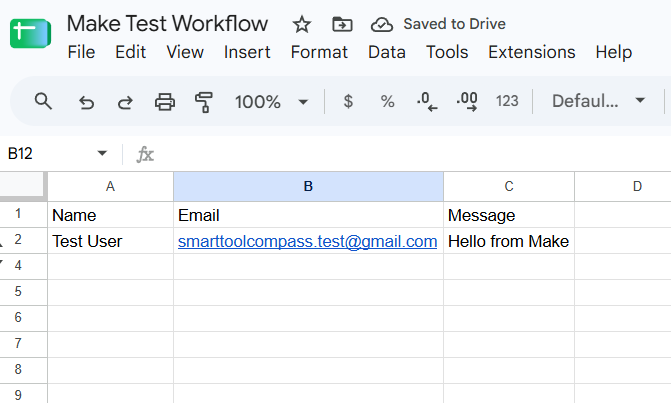
We used three simple fields — Name, Email, and Message — to test how Make maps spreadsheet data into a Gmail action.
Did It Work?
Yes. We added a row with the name Test User and the message Hello from Make, and ran the scenario.
Both modules reported success on the canvas: Google Sheets picked up the new row, Gmail sent the message. The email arrived in our test inbox with the subject line New message from Test User and the body Hello from Make — the exact values from the spreadsheet, in the fields we’d mapped them to.
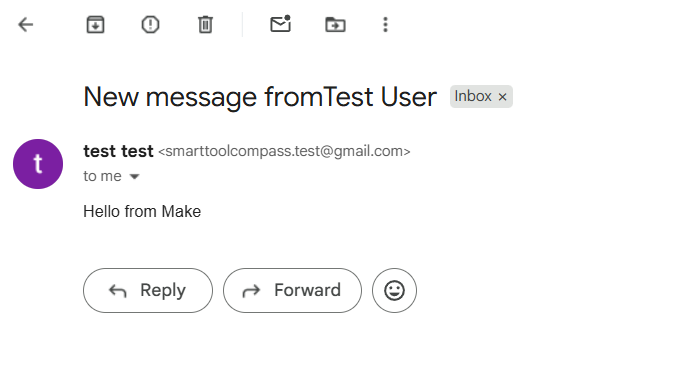
The automation completed successfully, and the test email arrived with the mapped subject and message.
The confirmation itself is worth a note. Success wasn’t a single green banner — each module carried its own result on the canvas, so we could see that the trigger had fired and that the send had gone through. When something eventually breaks, that’s the difference between knowing a scenario failed and knowing which half of it failed.
So here’s what this test establishes: a beginner can build and run a basic, working automation from a fresh account on the free plan, and the platform makes the result legible when it does. Here’s what it doesn’t establish: how Make behaves across a dozen modules, over months of unattended runs, or when an API on the other end starts misbehaving. We’ll test those separately rather than guess at them here.
Key Features That Matter for Freelancers
Rather than reprint Make’s feature list, here’s what’s actually relevant if you’re a team of one.
Visual scenario builder. The core of the product, and the thing we tested. Every step is visible, and you can inspect the data at each one. This matters more for debugging than for building.
3,000+ app integrations. Make publishes over 3,000 pre-built apps. Before committing, check that the specific tools you bill clients with are on the list — that’s the make-or-break question, not the headline number.
Filters and routers. Filters stop a workflow when a condition isn’t met; routers split it into branches. Worth knowing for pricing reasons too: per Make’s own documentation, router modules don’t consume credits, though the modules inside each active branch do. We didn’t test either feature.
Webhooks and instant triggers. Make supports webhooks, and its usage allowance table lists a webhook queue that scales with your credit volume. The practical reason to care: a webhook fires when something happens, while a scheduled scenario has to check on an interval. We didn’t test webhooks in this round.
AI features. Make offers an AI Toolkit, AI Agents, and Maia — a conversational builder that creates and edits scenarios from plain-language prompts. Per Make’s Help Center, Maia is in public beta on paid plans, and free plan users get a 30-day trial starting at signup. AI Agents are available on paid plans. Make’s own AI provider is available on all plans; connecting your own OpenAI or Anthropic key is a paid-plan feature. Note that AI features consume credits differently from standard modules — token usage factors in, so consumption isn’t 1:1.
Templates. Make publishes a template library for common workflows. We built from scratch instead, so we can’t comment on template quality.
Make Pricing
Pricing checked on August 23, 2026, on Make’s official pricing page. Prices shown are for 10,000 credits per month on annual billing; Make advertises annual billing as saving 15% or more versus monthly.
| Plan | Price | Credits | Key limits and additions |
|---|---|---|---|
| Free | $0 | 1,000/mo | 2 active scenarios · 15-min minimum interval · 5-min max execution · 5 MB max file size · 512 MB data transfer · 7-day log retention |
| Core | $9/mo | 10,000/mo | Unlimited active scenarios · scheduling down to 1 minute · 5 GB data transfer · Make API access |
| Pro | $16/mo | 10,000/mo | Priority execution · custom variables · full-text execution log search |
| Teams | $29/mo | 10,000/mo | Teams and team roles · shared scenario templates |
| Enterprise | Custom | Custom | SSO, audit logs, enterprise apps, overage protection, 24/7 support |
Make bills by credits. Most non-AI apps use a fixed rate of one credit per operation, with important exceptions. Filters, routers, and error-handler modules don’t consume credits. Trigger modules use one credit per run even when they return no new data, while action modules generally use one credit for each input bundle they process. AI features and Make Code can use credits differently.
Applied to our test, there isn’t a fixed “two credits per row” figure. Watch New Rows uses a credit each time the trigger checks, while the Gmail action uses credits for the rows it actually processes. Scheduling frequency therefore matters as well as row volume. We didn’t measure our actual credit consumption during testing.
Where the free plan actually stops. Two limits will reach a working freelancer first. The 2-active-scenario cap means a third automation forces an upgrade regardless of volume. The 15-minute minimum interval means scheduled scenarios check for new data four times an hour at best — fine for invoice reminders or a daily digest, not fine for anything a client is waiting on.
If you exceed your credits, scenarios stop until credits are added. Make sends warnings at 75% and 90%, and extra credits can be bought in bundles of 1,000 or 10,000 — at a 25% premium over the credits included in your plan, per Make’s Help Center. Unused credits expire at the end of the term.
Our advice on plan choice is the same advice we followed: build on the free plan first, then let your own credit usage pick the tier.
What We Liked
The onboarding takes beginners seriously. Declaring a skill level and naming your apps up front meaningfully narrowed what we saw. That’s a real design decision, not a survey — and it’s why our first scenario started with two relevant apps instead of a search box.
Field mapping is click-based, not syntax-based. Putting spreadsheet columns into an email’s recipient, subject, and body required no expressions and no variable syntax. In our test this was the single biggest reason the first build went smoothly: the mapping step became a series of choices rather than something you can get wrong by typing.
The canvas explains itself. After the scenario ran, we could see at a glance what was connected to what and that both modules had succeeded. For freelancers who’ll revisit an automation months later, or hand one to a client, that readability is a practical asset, not a cosmetic one.
The free plan is a real evaluation tier, not a demo. No time limit, no credit card, and enough credits to build and run something genuine. We proved that by building something genuine on it.
Where Make Falls Short
The “choose where to start” step is unexplained. As covered above, our trigger required a starting point before the scenario would run, and the screen doesn’t explain why it’s asking or what each option does. This was the one moment in our build where the interface stopped teaching and started assuming. Everything before it was guided; this wasn’t.
Credit cost is a design decision, and nobody tells you that up front. Because credits are consumed per module action, two people can build the same automation and pay differently based on how many modules and how many records are involved. That’s fair, but it means the plan price is only half the budgeting question, and the pricing page doesn’t teach you the other half.
Free plan headroom disappears at three automations. The 2-active-scenario cap is a structural limit, not a volume limit. A freelancer running an intake automation, an invoice reminder, and a client-report workflow is on a paid plan by definition.
Third-party feedback points consistently at the same soft spots. Ease of use is Make’s lowest sub-score on Capterra — 4.3, against 4.8 overall across 406 reviews, with Functionality and Value for Money both at 4.7. On G2, Make averages 4.6 across 275 reviews, roughly three-quarters of them from small businesses. Some users report that error messages are hard to interpret once scenarios get complex, that there’s no autosave and work can be lost, that advanced features and terminology take real time to learn, and that support lacks a live chat channel. None of these surfaced in a two-module build, which is exactly what you’d expect — they’re reported to show up at a scale we haven’t tested yet.
Who Make Is Best For
- Freelancers automating repetitive admin — intake forms, invoice reminders, client onboarding emails, status updates
- Solopreneurs connecting common business apps — spreadsheets, inboxes, calendars, form tools, CRMs
- People who think visually and want to see the whole workflow rather than a list of steps
- Anyone who has outgrown a very basic automation tool and needs conditional logic or multiple branches
- Freelancers evaluating carefully — the free plan is good enough to reach a real verdict before paying
Who Should Skip Make
- You want zero setup. Make asks you to configure things. That’s the trade for the flexibility.
- You need exactly one simple integration. If two apps have a native connection, use it. Adding an automation platform to link one pair of tools is overhead.
- You need fast, high-touch support on a critical workflow. Support tier scales with plan, and user reviews commonly cite response channels as a weak point.
- You want to self-host and own your infrastructure. Make is a hosted platform. That’s a different product category.
Make Alternatives
n8n — hands-on tested. We built the same Google Sheets to Gmail workflow in n8n and confirmed it end to end, from the trigger through to a delivered email. n8n exposed more per-step detail in our test, but its terminology and expression-style mapping felt more technical. It’s also the option to look at if self-hosting matters to you. A full side-by-side comparison is coming in a dedicated Make vs n8n review.
Zapier — research only. The larger app ecosystem, and priced per task rather than per module action, which changes the math depending on how your workflows are shaped. Third-party review scores generally rate it well on ease of setup. We haven’t tested it ourselves yet, so we’re reporting what’s published rather than what we’ve seen.
Pabbly Connect — research only. Frequently considered for its pricing model when predictability matters more than depth. We haven’t tested it, so treat this as a pointer for your own shortlist, not a recommendation.
Is Make Worth It for Freelancers?
Yes — for a specific freelancer.
It’s worth it if you have at least two or three recurring processes that move data between apps you already use, and you’re willing to spend some time setting up workflows instead of doing that work by hand every week. It’s worth it if you like seeing a workflow laid out visually, and if you’re willing to learn how credits are consumed before committing to a plan.
It’s not worth it if you have one simple task, no patience for configuration, or a workflow so time-critical that slow support would cost you a client.
And if you’ve never automated anything: our test shows a beginner can build and run a basic automation from a fresh account, with one step where you’ll probably have to stop and think.
Final Verdict
Choose Make if you’re a freelancer or solopreneur with several repetitive app-to-app processes, you want to see your workflows rather than list them, and you’re comfortable learning a credit model that rewards efficient building.
Consider an alternative if you need one simple connection and nothing more, you want the largest possible app library, or you’d rather self-host and control the infrastructure yourself.
The free plan is the right place to settle this. No time limit, no credit card, and enough credits to build something that actually runs — which is exactly what we did.

Comments