By the SmartToolCompass editorial team · Updated August 27, 2026 · Hands-on tested August 26, 202
Disclosure: This article is independently researched and hands-on tested. Some links on this page may become affiliate links in the future.
Quick Verdict
Pabbly Connect is built for freelancers who care about what automation costs over years, not months. Its pricing model is the most distinctive thing about it: only action steps count as tasks. Triggers are free, and Pabbly also excludes many internal steps such as filters, routers, and formatters from its task count. Pabbly also stands out by offering one-time lifetime plans alongside subscription pricing.
We tested it by building the same workflow we’ve built in Make and n8n: a new row in Google Sheets sends an email through Gmail. It worked, and the email arrived exactly as mapped.
Getting there took more setup than either of the other two. Pabbly’s Google Sheets trigger requires installing a Google Sheets add-on, pasting in a webhook URL, and specifying a trigger column — and it wants the column letter, not the column name. We entered “Message” first. The correct answer was “C.”
Once the trigger was capturing data, building the Gmail step was straightforward. Type a slash in any field and Pabbly shows you the data from the previous step. That part was easy.
So: worth trying free if predictable long-term cost matters to you. Expect the first trigger to take some patience.
Pabbly Connect at a Glance
| Best for | Freelancers focused on long-term automation cost, and anyone tired of per-step billing |
| Free plan | Yes — 100 tasks/month, no credit card |
| Starting price | $16/month for 10,000 tasks (Standard, annual billing) |
| Task model | Only external actions count; triggers and internal steps are free |
| One-time option | Yes — lifetime plans from $349 |
| No-code / low-code | No-code, with optional JavaScript and Python on paid plans |
| Main strength | Task model and lifetime pricing that make long-run costs predictable |
| Main drawback | Our Google Sheets trigger needed add-on and webhook setup before it would fire |
| Testing status | Hands-on tested — free plan, first-workflow scope |
What Is Pabbly Connect?
Pabbly Connect is a workflow automation platform: you pick a trigger app, pick one or more action apps, map the data between them, and turn the workflow on. It competes directly with Zapier, Make, and n8n, and it positions itself explicitly as the cheaper Zapier alternative.
Pabbly is operated by Magnet Brains, with legal entities in the U.S. and India. Pabbly Connect is one product in a larger suite that includes email marketing, subscription billing, and form building. Buying Pabbly Connect does not get you the others — worth knowing, because the “Pabbly Plus” bundle is a separate purchase and the naming causes confusion.
Pabbly lists over 2,000 app integrations, and it’s SOC 2 Type 2 and ISO 27001:2022 certified.
What We Tested
We created a free Pabbly Connect account. The dashboard showed 100 Tasks Remaining, and we set the timezone to Asia/Tokyo.
From there we chose Create Workflow → Create from Scratch. Pabbly offers an AI builder and a quick builder; we used neither, because we wanted to know what building a workflow by hand actually feels like. We named it Google Sheets to Gmail Test.
The workflow:
New or updated row in Google Sheets
              ↓
    Pabbly Connect webhook trigger
              ↓
      Gmail — Send Email
              ↓
Email column  → recipient
Name column   → subject line
Message column → body
The spreadsheet was called Automation Test Workflow, with a sheet named test and three columns: Name, Email, Message. This is the same structure we used to test Make and n8n, on the same Google account, which is what makes our three reviews comparable.
This was intentionally a first-workflow test. It tells us how Pabbly handles signup, workflow creation, trigger configuration, app authorization, field mapping, and execution. It does not tell us about multi-step branching, routers, error recovery, high volume, support responsiveness, or reliability over months. We didn’t test those, and we’ll flag it wherever it’s relevant.
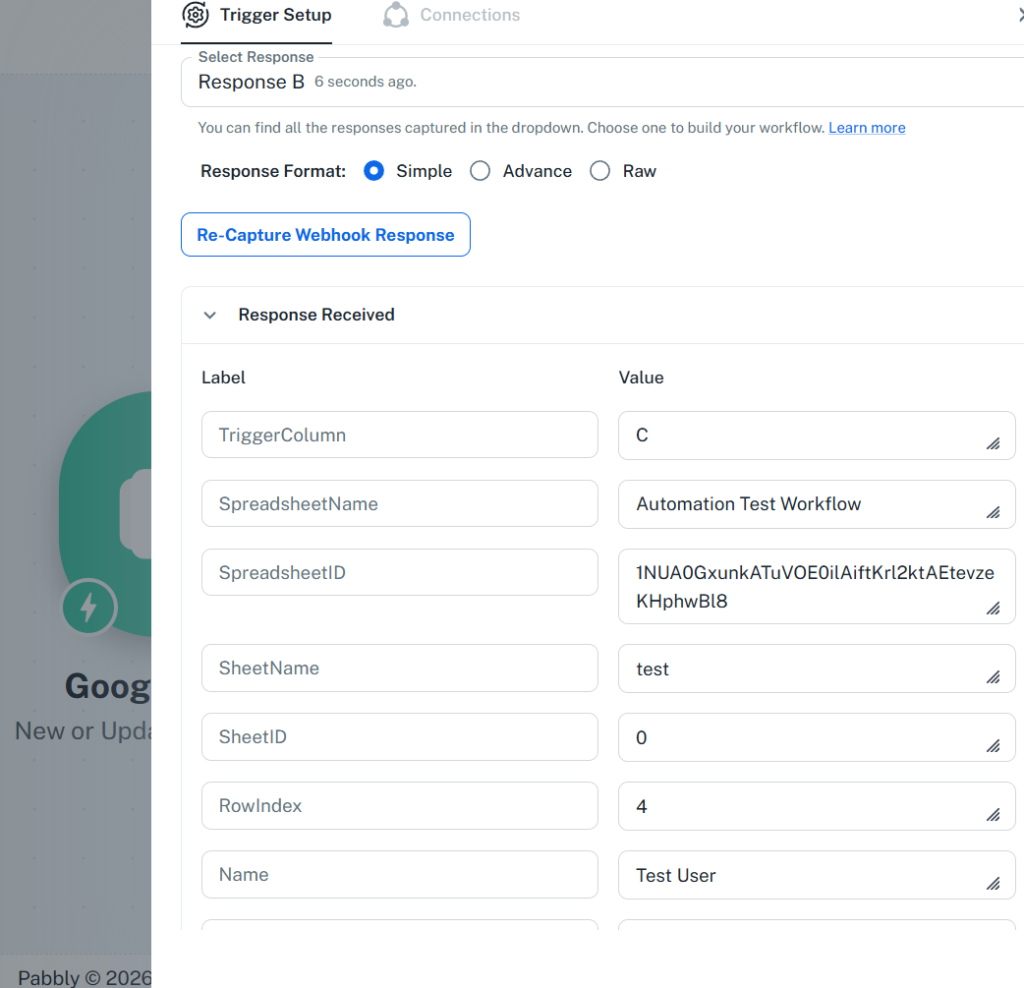
Our Pabbly Connect test captured the spreadsheet data through its Google Sheets webhook trigger before passing it to Gmail.
Setup and Ease of Use
The workflow builder itself is easy to follow. Pabbly presents the workflow as an ordered trigger-and-action sequence rather than Make’s free-form visual canvas. Trigger at the top, actions beneath it, in order — you can read what a workflow does without arranging anything.
The trigger is where the work was.
We selected Google Sheets → New or Updated Spreadsheet Row, and Pabbly responded with a webhook URL and instructions. This is the structural difference from Make and n8n: rather than Pabbly reaching into your spreadsheet on a schedule, your spreadsheet pushes data to Pabbly when something changes. To make that happen, Google Sheets needs a helper.
So we went into the spreadsheet, opened Extensions → Add-ons, and installed Pabbly Connect Webhooks. Then, in the add-on’s Initial Setup, we pasted the webhook URL and filled in the Trigger Column.
Here’s where we lost time. We typed Message, since that’s the column we wanted to watch. Pabbly wants the column letter. Our Message column is the third one, so the correct value was C.
That’s a small thing that stops a beginner cold. The field is labeled “Trigger Column,” the columns in your sheet have names at the top, and nothing on screen says “use the letter from the spreadsheet’s column header bar.” Once we entered C and enabled Send On Event, the setup was done.
One more snag: when we tried to re-capture the webhook response, Pabbly warned us that the workflow had to be turned on first — “You need to turn ON the workflow to capture the webhook response.” Clear enough once you read it, and easy to trip over if you’re used to tools where testing and running are separate modes. We switched the workflow on and captured the response.
The response itself was reassuring: Pabbly pulled in TriggerColumn, SpreadsheetName, SheetName, RowIndex, and our field values, including Name: Test User. Real data from the real sheet.
What this means for a freelancer: Pabbly’s Sheets trigger asks for more setup than Make’s or n8n’s, and in exchange you get a push-based trigger rather than a scheduled check. That’s a real trade, not just friction — but it is front-loaded onto the person least equipped to handle it, which is someone building their first automation. We’d also note that this was one integration tested once, so the setup experience may differ with other apps.
Mapping Google Sheets Data Into Gmail
After the trigger, the pace changed completely.
We added Gmail → Send Email, authorized the Google account, and filled in the fields:
- Sender Name: SmartToolCompass
- Sender Email Address: our test Gmail address
- Recipient Email Addresses: the Email field from Google Sheets
- Email Subject: “New message from ” plus the Name field
- Email Content: the Message field
- Email Content Type: Plain
Pabbly’s newer builder handles mapping through a slash command. Type / in any field and a list of data from previous steps appears — you pick the one you want and it drops in. No syntax to memorize, no expression language to learn.
That’s a genuinely nice piece of interface design, and it’s the moment Pabbly felt easiest of the three tools we’ve tested. In Make, mapping means clicking through a panel of available fields. In n8n, it means expressions like {{ $json.Email }}. In Pabbly, it’s the same gesture you already use in Notion or Slack.
We left Cc, Bcc, Reply To, attachments, and signature empty. Two steps, three mapped fields, done.
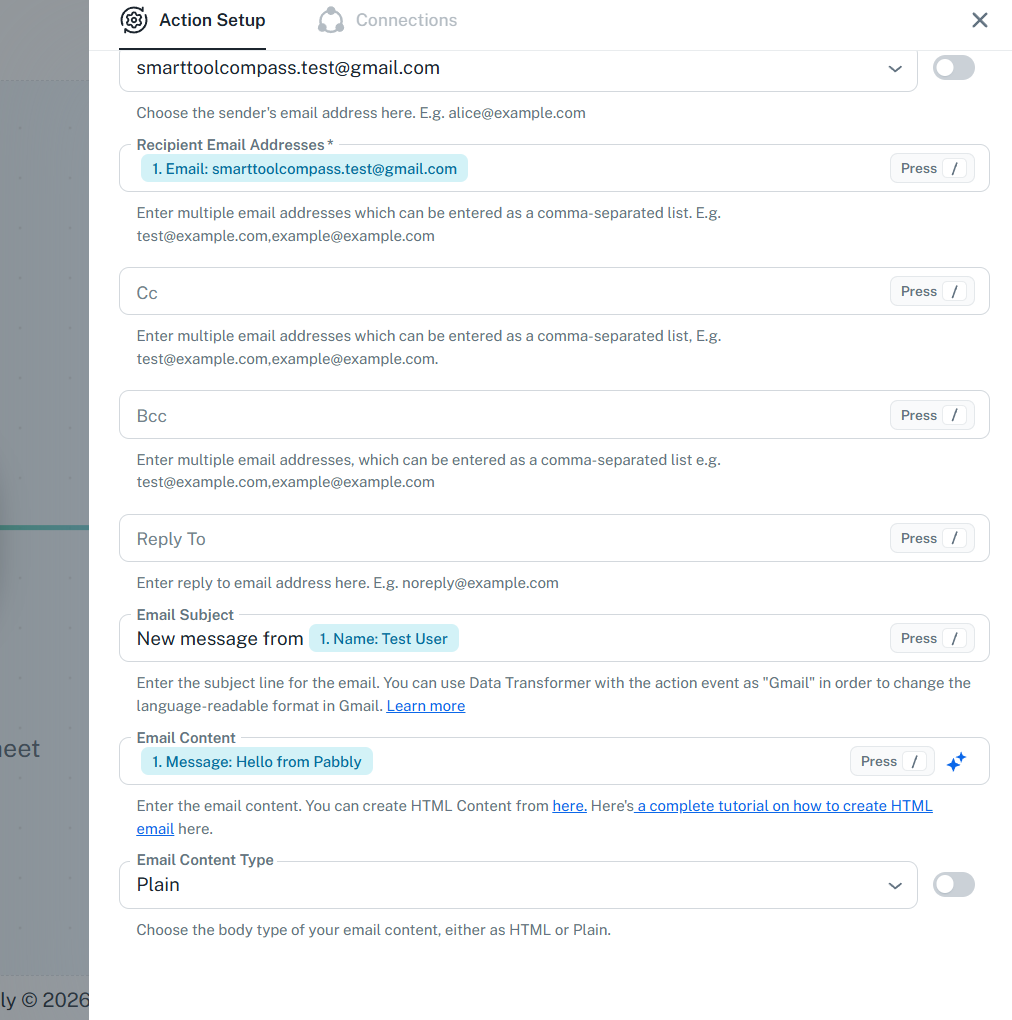
We mapped the spreadsheet’s Email, Name, and Message fields directly into Pabbly’s Gmail action.
Did It Work?
Yes.
We sent a test, and the email landed in our inbox:
- Subject: New message from Test User
- Sender: SmartToolCompass
- Body: Hello from Pabbly
Every mapped field arrived where we’d put it. The sender name we set showed up as the sender name, which is worth mentioning because it’s the kind of small control that matters if you’re automating client-facing email.
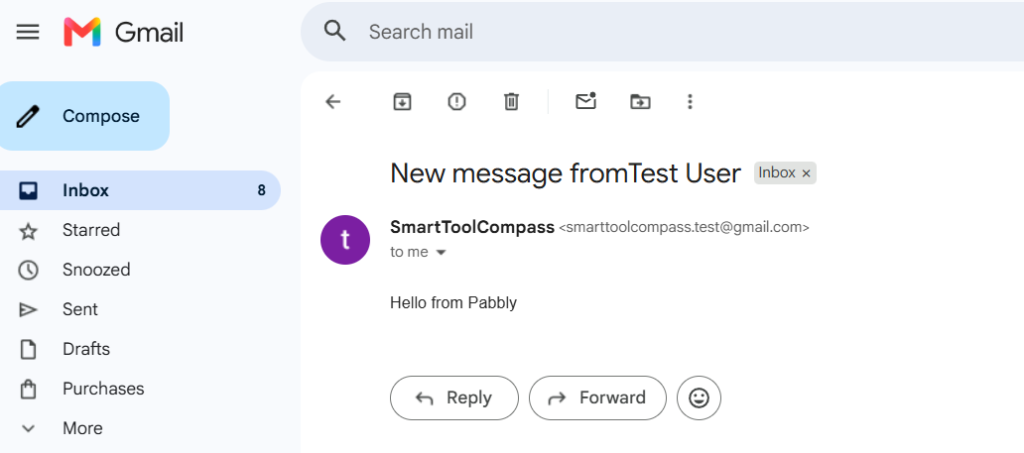
The workflow completed successfully, and Gmail received the message generated from the spreadsheet row.
What this test establishes: we built a working Google Sheets to Gmail automation on the free plan, captured live webhook data from a real spreadsheet, mapped three fields into a Gmail action, and received the resulting email. The platform did what it said it would.
What it doesn’t establish: how Pabbly behaves with routers and multi-step branching, what its error messages look like when something breaks, how fast support responds, whether all 2,000+ integrations are as solid as these two, or how it holds up over months of unattended running.
Key Features That Matter for Freelancers
The task model. The most important feature here isn’t a feature at all — it’s an accounting decision. More on this in the pricing section, because it’s the reason to consider Pabbly at all.
Instant webhooks. Available on every plan, including free. Our Sheets trigger used this mechanism, via the add-on.
Routers and filters. Pabbly supports conditional branching and filters, and lists both as free internal steps that don’t consume tasks. We didn’t test either in this round.
Formatters and internal tools. Text formatting, date/time conversion, math, JSON extraction, email parsing, iterators. All listed as task-free. Untested here.
API module. Connects to any service with a REST API, even without a native integration. This is the escape hatch when your niche client tool isn’t in the catalog. Untested.
Code by Pabbly. JavaScript and Python steps, available on paid plans. Not on free. Untested.
AI Assistant and MCP servers. Pabbly lists an AI Assistant and MCP server support on paid plans. We built manually and can’t comment on either.
Video tutorials. Pabbly publishes a very large tutorial library — over 12,000 videos by its own count. Whether that’s a strength or a symptom depends on your view: it’s excellent coverage, and it also suggests a product where people frequently need to look things up.
Pabbly Connect Pricing
Pricing checked on August 26, 2026, on Pabbly’s official pricing pages. USD figures.
| Plan | Price | Tasks/month | Notes |
|---|---|---|---|
| Free | $0 | 100 | No credit card; see the note below on how Pabbly describes free-plan limits |
| Standard (monthly) | $19/mo | 10,000 | Unlimited workflows, multi-step |
| Standard (annual) | $16/mo | 10,000 | 15% off monthly; longer terms discount further |
| Unlimited (annual) | $69/mo | Unlimited | $79/mo on monthly billing; unlimited team members |
| Standard Lifetime | $349 once | 3,000 | Unlimited workflows; feature restrictions apply |
| Ultimate Lifetime | $799 once | 10,000 | Unlimited workflows, multi-step, all features |
| Ultimate Plus Lifetime | $1,298 once | 20,000 | As above, plus one year of support |
All plans come with a 30-day money-back guarantee. Lifetime plans cannot be stacked or upgraded later, which Pabbly states plainly — pick based on where you expect to be, not where you are.
How Pabbly counts tasks
This is the part worth understanding before you compare prices with anything else.
Per Pabbly’s own documentation: a task is an action performed on an external app. Triggers are not counted. Internal Pabbly steps — filters, routers, formatters, schedulers, iterators, email parsers — are not counted either.
Pabbly also distinguishes tasks from operations. An operation is a check made to an external app to see whether there’s new data. Pabbly’s example: a check every five minutes is 288 operations a day whether or not anything changed. Pabbly does not charge for operations.
Applying that to our test workflow: one trigger (free) plus one Gmail action equals one task per row. On the free plan’s 100 tasks, that’s 100 emails a month. We didn’t verify the count in the dashboard afterward, so treat that as arithmetic from Pabbly’s stated rules rather than a measurement.
Now the comparison that matters. Make charges a credit per module action, so a five-step workflow costs roughly five credits per run. n8n charges one execution per workflow run regardless of steps. Pabbly charges only for the steps that touch an external app. Pabbly’s task model can be especially favorable for workflows that use many internal steps but relatively few external actions. For a workflow that’s five external actions in a row, the advantage narrows.
We haven’t run the same workflow at volume on all three platforms and compared bills. Anyone who tells you one is definitively cheaper is generalizing. Count the external actions in your typical workflow and multiply — that’s the honest way to compare.
On the lifetime plans
Pabbly’s one-time plans are the reason many freelancers look at it. The pitch is straightforward: pay once, keep a fixed monthly task allowance forever, stop paying subscription fees.
Two things to know before you’re tempted. First, the $349 Standard Lifetime tier includes 3,000 tasks per month, but its feature set differs from the higher lifetime tiers. Check the current plan details before purchasing. Second, Pabbly says you can’t upgrade between one-time plans later, and can’t stack them.
Try the free plan before deciding →
What We Liked
Slash-based mapping. Typing / to pull in data from a previous step was the smoothest mapping experience of the three tools we’ve tested. It requires no syntax and no hunting through a panel.
The workflow structure is legible. Trigger on top, actions below, in order. There’s nothing to arrange, and you can read what a workflow does without opening anything.
The trigger returned real, complete data. Once configured, the webhook response showed the actual spreadsheet values, including field names — so we built the Gmail step against real data rather than assumptions.
The free plan is enough to complete a real workflow. Our two-step automation ran end to end without a credit card, on 100 tasks a month with no time limit. That’s a genuine evaluation tier, not a countdown.
Free internal steps are a real structural advantage. Not something we measured, but the rule is published and unambiguous: filters and routers don’t consume tasks. If your workflows involve a lot of conditional logic, that changes your monthly math in a way marketing copy usually doesn’t.
Where Pabbly Connect Falls Short
The Google Sheets trigger requires an add-on. Neither Make nor n8n asked us to install anything inside Google Sheets. Pabbly did. It’s a legitimate architectural choice with a real benefit, but it’s an extra installation, an extra permission grant, and an extra configuration screen before your first automation can fire.
“Trigger Column” wants a letter, not a name. This is the specific thing that cost us time. The label doesn’t say it, the surrounding text doesn’t say it, and the intuitive answer is wrong. A one-line hint would fix it.
Testing requires the workflow to be on. The warning is clear, but the underlying model — that you can’t capture a webhook response while the workflow is off — isn’t obvious coming from tools that separate testing from running.
Pabbly’s own pages describe the free plan inconsistently. The free plan’s summary lists unlimited, multi-step workflows, while the feature list beneath it says you can create up to 2 workflows with up to 2 steps. Third-party reviews are split along the same lines. We built a two-step workflow and never hit a limit, so we can’t settle it — check the plan screen in your own account before you build anything longer.
Third-party feedback points at support and polish. On Capterra, reviewers frequently praise the price and the integration breadth while raising the same two issues: there’s no live chat support, and the interface feels dated with error messages that don’t always tell you what to do next. Some also report that first automations can be more confusing to set up than Zapier’s. We saw a version of that last point in our own test; the rest is user-reported, not our experience.
Who Pabbly Connect Is Best For
- Freelancers who think in years, not months — the lifetime plans and free internal steps are aimed squarely at you
- Anyone whose workflows are logic-heavy — filters and routers not counting as tasks materially changes the cost
- Solopreneurs already running several automations who’ve watched a subscription bill grow with each one
- People comparing Zapier alternatives on price — this is the platform most often reached for in that comparison
- Freelancers willing to spend a bit more effort on setup in return for a lower running cost
Who Should Skip Pabbly Connect
- You want the smoothest possible first automation. Our Sheets trigger needed more steps than the alternatives, and setup friction lands hardest on first-timers.
- You need responsive, high-touch support. Support runs through a forum and ticket system, priority support is a paid feature, and the absence of live chat is the most consistent complaint in user reviews.
- You want one simple connection and nothing more. If the two apps talk to each other natively, use that.
- You’re evaluating the cheapest lifetime tier for real work. The $349 tier caps you at 3,000 tasks a month with a narrower feature set than the higher tiers, and you can’t upgrade later.
Pabbly Connect vs Make vs n8n: Our First-Workflow Impression
All three built from the same spreadsheet, on the same Google account, with the same three columns.
| Category | Make | n8n | Pabbly Connect |
|---|---|---|---|
| Google Sheets trigger | Built-in, no add-on | Built-in, no add-on | Requires Sheets add-on + webhook setup |
| Trigger setup difficulty | One confusing step | Straightforward in our Google Sheets test | Most steps of the three |
| Data mapping | Click-based | Expression-based | Slash command |
| Visual clarity | Canvas with connected modules | Canvas with per-node detail | Vertical step list |
| Technical feel | Lowest | Highest | Low, apart from the trigger setup |
| Billing unit | Credits per module action | Executions per workflow run | Tasks per external action |
| Hands-on result | Worked end to end | Worked end to end | Worked end to end |
All three delivered the email. The differences are in what they ask of you and how they charge you — not in whether they work.
Read our full Make review and n8n review, or the head-to-head in Make vs n8n. A Make vs Pabbly Connect comparison is coming.
Is Pabbly Connect Worth It for Freelancers?
Yes — for freelancers whose main concern is what automation costs over time.
If you’re running several workflows with conditional logic, and you expect to keep running them for years, Pabbly’s model is built for exactly that situation. Free triggers and free internal steps mean your task allowance stretches further than the headline number suggests, and the lifetime plans remove the recurring bill entirely. That can be a meaningful advantage for freelancers who want to avoid ongoing subscription costs.
It’s less compelling if you’re automating one thing and want it done in the next hour. Our test says the Gmail side of the build is easy and the Google Sheets trigger is not, and if that’s the only workflow you need, the setup cost is the whole cost.
It’s also not the right pick if support matters more than price. If responsive, high-touch support is a priority, we’d weigh third-party support feedback carefully before committing.
Final Verdict
Choose Pabbly Connect if you’re cost-conscious over the long run, your workflows use filters and routers, and you can absorb a slower first setup in exchange for a lower running cost — or if the lifetime plan simply solves a problem subscriptions don’t.
Consider Make if you want the most approachable first automation and a visual canvas, and you’re comfortable with credit-based billing that scales with the number of steps.
Consider n8n if you want visibility into every step, don’t mind technical terminology, or need self-hosting.
The free plan is the right place to settle this. It costs nothing, needs no card, and carried the workflow we built from setup to delivered email — enough to find out whether the setup style suits you before any money is involved.


Comments