By the SmartToolCompass editorial team · Updated August 28, 2026 · Make hands-on tested August 23, 2026 · Pabbly Connect hands-on tested August 26, 2026
Disclosure: We may earn a commission if you sign up through some links on this page, at no additional cost to you. Affiliate relationships never affect our testing or recommendations.
Quick Answer
Choose Make if you’re building your first automation and want the least friction getting there. In our test, Make connected to Google Sheets without installing anything, and its click-based mapping needed no setup beyond picking fields.
Choose Pabbly Connect if long-term cost matters more than setup speed. Pabbly charges only for actions that touch an external app — triggers, filters, routers, and formatters don’t count — and it sells one-time lifetime plans alongside subscriptions.
We built the same Google Sheets to Gmail workflow in both, on the same Google account, with the same three columns. Both delivered a real email. The difference wasn’t capability.
Make took noticeably less work to set up. Pabbly’s Google Sheets trigger required installing a spreadsheet add-on, pasting a webhook URL, and specifying a trigger column by letter rather than name — which is exactly where we got it wrong the first time.
But once past that, Pabbly’s mapping was the best of the two. Typing a slash pulls in data from the previous step, with no panel to hunt through.
Our pick for most beginners: Make. For cost-conscious long-term users: Pabbly Connect can be the better economics, depending on how your workflows are shaped.
Make vs Pabbly Connect at a Glance
| Category | Make | Pabbly Connect |
|---|---|---|
| Best for | First automations, visual builders | Long-term cost, logic-heavy workflows |
| Free plan | 1,000 credits/mo, 2 active scenarios | 100 tasks/mo, no credit card |
| Starting price | $9/mo for 10,000 credits (annual billing) | $16/mo for 10,000 tasks (annual) |
| Billing unit | Credits; most non-AI modules use 1 credit per operation | Tasks, per external app action |
| Google Sheets setup | Built in, no add-on | Requires a Sheets add-on and webhook |
| Data mapping | Click-based panel | Slash command |
| Visual workflow builder | Free-form canvas with connected modules | Ordered trigger-and-action sequence |
| Lifetime plan | No | Yes, from $349 one-time |
| Main strength | Fastest path to a working first automation | Task model that excludes internal steps |
| Main drawback | Polling and billable module operations can consume credits quickly | Our Sheets trigger needed the most setup |
| Hands-on tested | Yes | Yes |
How We Tested Make and Pabbly Connect
Both builds used the same spreadsheet — Automation Test Workflow, sheet test, columns Name, Email, Message — on the same Google account.
The goal in both cases:
New row in Google Sheets
          ↓
   Make  |  Pabbly Connect
          ↓
     Gmail send
          ↓
Email  → recipient
Name   → subject line
Message → body
In Make we used Google Sheets Watch New Rows into Gmail Send an email, built manually on the free plan without Maia or any AI assistant. In Pabbly we used Create from Scratch — no AI builder, no quick builder — with Google Sheets New or Updated Spreadsheet Row into Gmail Send Email, on a free account showing 100 tasks remaining.
The trigger mechanisms aren’t identical, and that difference is part of the comparison rather than a flaw in it.
This was a first-workflow test on both platforms. It covers signup, trigger configuration, app authorization, field mapping, and execution. It does not cover branching, error handling, volume, support quality, or reliability over time on either tool.
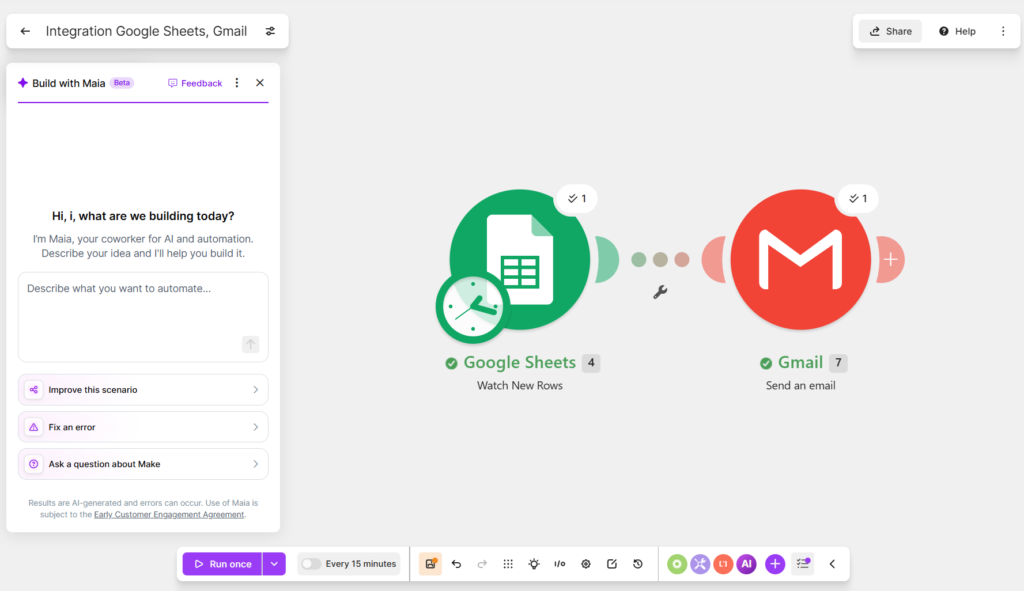
Our Make test connected Google Sheets to Gmail and completed the workflow successfully.
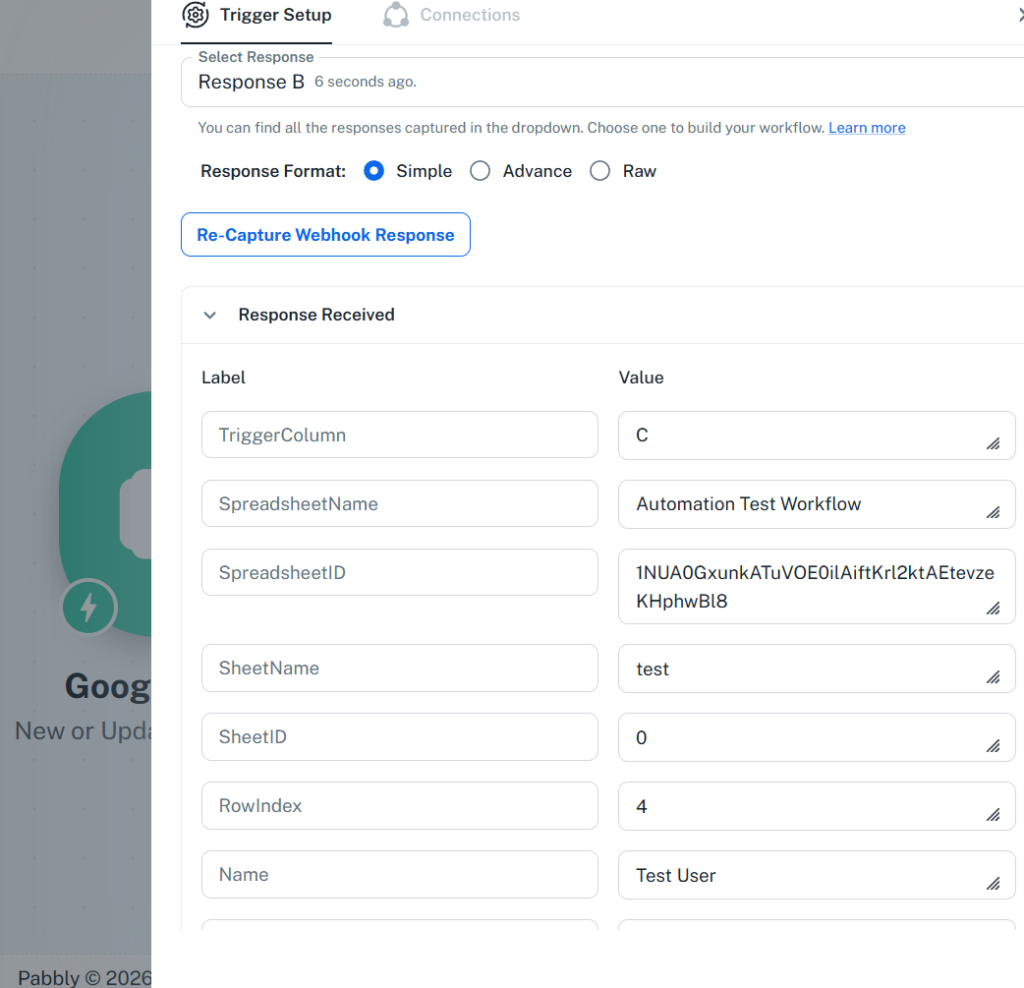
Our Pabbly Connect test captured the same spreadsheet data through its Google Sheets webhook trigger.
Setup: Make Was Faster in Our Test
Make needed nothing installed. We added the Google Sheets module, authorized Google through the standard OAuth screen, selected the spreadsheet and sheet, set the header range to A1:C1, and moved on to Gmail. The whole trigger took one screen.
One step gave us pause. Before the scenario would run, Make asked us to choose where the trigger should start reading from — which existing row counts as the first new one. The logic is sound, since a trigger pointed at a populated sheet would otherwise fire on everything already in it, but the screen doesn’t explain that. We selected All and continued.
Pabbly Connect needed considerably more. Selecting Google Sheets → New or Updated Spreadsheet Row produced a webhook URL and instructions, because Pabbly’s model has the spreadsheet push data out rather than Pabbly reaching in. To make that work we had to:
- Open the spreadsheet and go to Extensions → Add-ons
- Install Pabbly Connect Webhooks
- Paste the webhook URL into the add-on’s Initial Setup
- Specify a Trigger Column
- Enable Send On Event
- Turn the workflow on before the response could be captured
Step 4 is where we lost time. We entered Message, the name of the column we wanted to watch. Pabbly wants the column letter — ours was the third column, so the answer was C. Nothing on screen says so, and the intuitive answer is wrong.
Step 6 caught us too. Attempting to re-capture the webhook response produced a warning that the workflow had to be switched on first. Clear once read, easy to hit if you’re used to tools where testing and running are separate modes.
Once configured, the response came back complete: TriggerColumn, SpreadsheetName, SheetName, RowIndex, and our field values including Name: Test User.
Make won setup simplicity in this test, clearly. The caveat matters though: this is one integration. Pabbly’s add-on requirement is specific to Google Sheets, and a different trigger app could reverse the result. We tested Google Sheets because it’s the most common starting point for freelancers, not because it’s representative of all 2,000+ of Pabbly’s integrations.
Data Mapping: Pabbly Was Surprisingly Good
The order flips here.
Make exposes the previous module’s output in a mapping panel. You click the field you want — Email into the recipient, Name into the subject, Message into the body — and Make inserts the reference. No syntax required. It works well and it’s a large part of why Make feels approachable.
Pabbly uses a slash command. Type / in any field and a list of available data from previous steps appears inline. Pick one, it drops in. We mapped Email to Recipient, Name into the subject, and Message into the content, then set the content type to Plain and left Cc, Bcc, Reply To, attachments, and signature empty.
It’s the same gesture you already use in Slack or Notion, and it kept our hands on the keyboard instead of moving between a panel and a field. Of the three automation tools we’ve now tested with this workflow — Make, n8n, and Pabbly — this was the mapping step we’d most want to use again.
Neither tool required expression syntax. That’s worth stating plainly, because it separates both from n8n, where the same mapping meant writing {{ $json.Email }}.
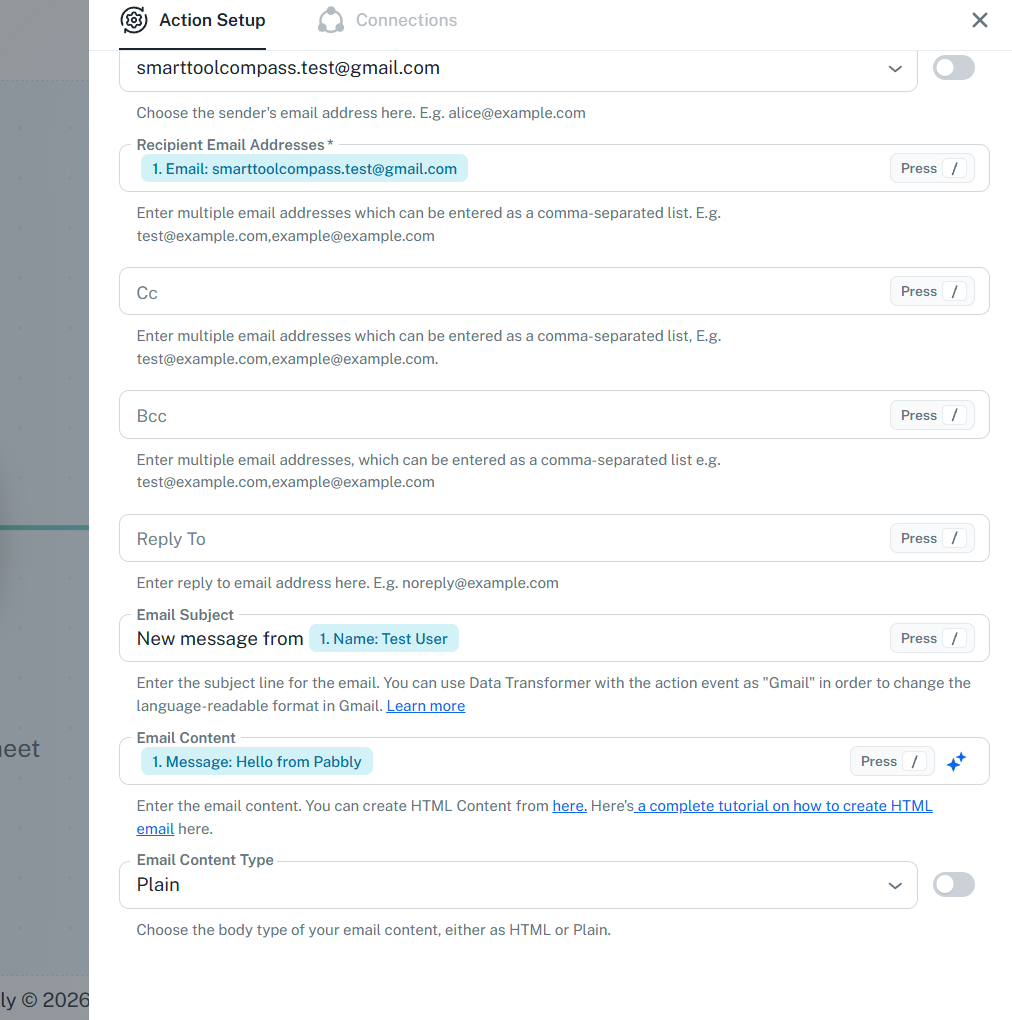
Pabbly’s slash-based mapping let us insert the spreadsheet’s Email, Name, and Message fields directly into Gmail.
Did Both Work?
Yes, both, end to end.
Make delivered an email with the subject New message from Test User and the body Hello from Make. Both modules reported success on the canvas.
Pabbly delivered an email with the subject New message from Test User, the body Hello from Pabbly, and the sender name we’d set — SmartToolCompass.
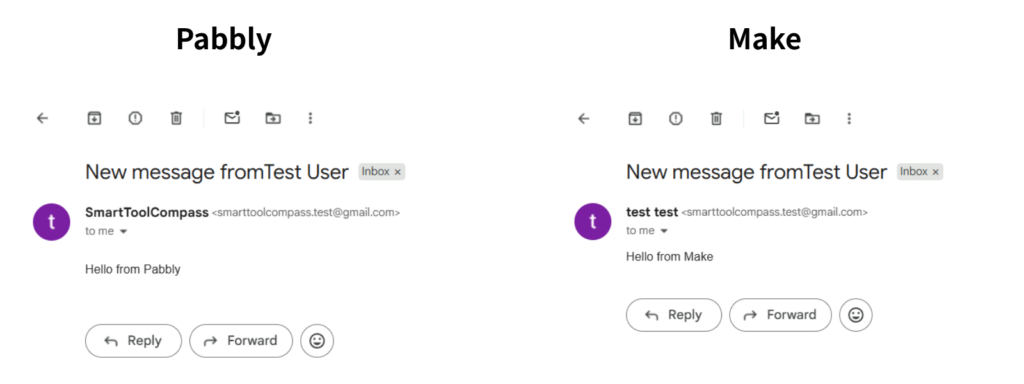
Both automations delivered. Make’s test email read “Hello from Make” and Pabbly’s read “Hello from Pabbly,” using the same spreadsheet columns.
We measured no difference in reliability or speed, and we’re not going to claim one. What this establishes is that both platforms handle the same basic workflow correctly. The decision is about everything around that.
Make vs Pabbly Connect: Ease of Use
Based on our builds, not on marketing claims:
| Category | Make | Pabbly Connect |
|---|---|---|
| Account setup | Beginner onboarding with app selection | Straightforward, timezone set at start |
| First workflow | Guided from the start | Create from Scratch, clear structure |
| Google Sheets trigger | Built in, one screen | Add-on, webhook URL, trigger column |
| Gmail connection | Standard OAuth | Standard OAuth |
| Field mapping | Click-based panel | Slash command, inline |
| Testing | Run the scenario, check module states | Capture webhook response, then send test |
| Warning clarity | “Choose where to start” underexplained | Workflow-ON warning clear, trigger column not |
| Visual clarity | Canvas showing the data path | Ordered step list |
| Overall beginner experience | Smoother | More setup before the first run |
Winner on overall beginner experience: Make. But the row that surprised us is field mapping, where Pabbly was the better of the two. If your mental model of Pabbly is “cheaper but clunkier,” half of that isn’t right.
Make vs Pabbly Connect Pricing
Make pricing checked August 23, 2026; Pabbly Connect pricing checked August 26, 2026, both on the vendors’ official pricing pages. USD.
Make
| Plan | Price | Credits/mo | Notes |
|---|---|---|---|
| Free | $0 | 1,000 | 2 active scenarios, 15-minute minimum interval |
| Core | $9/mo | 10,000 | Unlimited scenarios, 1-minute scheduling, API access |
| Pro | $16/mo | 10,000 | Priority execution, custom variables, log search |
| Teams | $29/mo | 10,000 | Team roles, shared templates |
Annual billing. On monthly billing the same tiers run $12, $21, and $38.
Pabbly Connect
| Plan | Price | Tasks/mo | Notes |
|---|---|---|---|
| Free | $0 | 100 | No credit card; see the note below on free-plan limits |
| Standard | $16/mo | 10,000 | $19/mo billed monthly |
| Pro | $33/mo | 20,000 | $39/mo billed monthly |
| Unlimited | $69/mo | Unlimited | $79/mo billed monthly |
| Standard Lifetime | $349 once | 3,000 | 10 workflows; two-step workflows |
| Ultimate Lifetime | $799 once | 10,000 | Multi-step, all features |
| Ultimate Plus Lifetime | $1,298 once | 20,000 | Plus one year of support |
Lifetime plans can’t be stacked or upgraded later, and all plans carry a 30-day money-back guarantee.
A note on Pabbly’s plan descriptions. Pabbly’s own pages currently describe the same plans differently in different places. The free tier is listed as unlimited and multi-step in one place, and as up to 2 workflows with up to 2 steps in another. The $349 Standard Lifetime tier shows the same kind of split — unlimited multi-step workflows on one page, and 10 workflows with two steps each on the current purchase page. The figures in our table above come from the purchase page, since that’s what you actually buy from. We built a two-step workflow and never hit a limit on the free tier, so we can’t settle that one. Check the plan screen inside your own account before building anything longer, and read the checkout page carefully before buying a lifetime plan.
Credits vs tasks
The headline prices look similar. The billing units don’t work the same way at all.
Make counts credits per operation. Most non-AI modules consume one credit per operation — reading a row, sending an email. Routers, filters, and error handlers are exceptions and don’t consume credits. AI features are billed differently.
Pabbly counts tasks per external app action. Per Pabbly’s published rules, triggers don’t count. Neither do internal steps: filters, routers, formatters, schedulers, iterators, email parsers. Only actions performed on an outside service.
Applied to the workflow we built:
Make: Google Sheets’ Watch New Rows is a polling trigger. Per Make’s documentation, the trigger consumes a credit each time it checks for new data, whether or not it finds any, and the Gmail action consumes a credit for each row it processes. So there’s no fixed “two credits per row” figure — how often the scenario is scheduled and how many rows each check picks up both move the number.
Pabbly: based on Pabbly’s published rules, the webhook trigger is free and the Gmail action counts as one task per processed row.
We didn’t run either workflow at volume and compare dashboard counters, so treat both as readings of published rules rather than measurements.
Pabbly’s advantage depends on which steps your workflow uses. Pabbly excludes a broad range of internal tools from task counts, while Make also makes routers and filters free. Other processing modules may still consume Make credits, so compare the actual modules in your workflow rather than assuming every internal step is billable. A workflow that’s five external actions in a row narrows the difference considerably on either platform.
Which Is Cheaper: Make or Pabbly Connect?
It depends on the shape of your workflows, and anyone who answers this in one word is guessing.
Running one or two simple automations at low volume? Both free plans may cover you, but the headline numbers aren’t directly comparable. Make’s free plan gives you 1,000 credits against Pabbly’s 100 tasks — except Make’s polling trigger spends credits every time it checks for new rows, while Pabbly’s webhook trigger consumes nothing. A frequently scheduled Make scenario can burn through its allowance without processing a single row; a Pabbly workflow that never fires costs nothing at all.
Building workflows with a lot of conditional logic? Compare the exact modules you need. Both platforms make some internal logic steps free, including filters and routers, while their treatment of other operations differs.
Automating a handful of straightforward multi-app processes? Costs land close enough that setup speed and interface preference should decide it, not price.
Planning to run the same automations for years? The lifetime plans change the calculation entirely. At $799 for Pabbly’s Ultimate Lifetime tier, you’re comparing a large upfront payment against Make Core starting at $108 per year on annual billing. The two aren’t equivalent in what they include or in how they count usage, so we won’t reduce this to a break-even year. What it comes down to is how confident you are that you’ll still be running these workflows years from now, and that the platform will still suit you.
We’d be cautious about one thing: a lifetime plan is a bet on a company’s longevity and on your own needs staying put. Neither is guaranteed.
Features We Didn’t Test
Both lists matter, because everything above comes from one two-step workflow each.
Make: routers and filters, webhooks, multi-step scenarios, Maia and AI agents, error handling, team features, high-volume runs, long-term reliability.
Pabbly: routers and filters, the API module, Code by Pabbly, AI Assistant, MCP servers, email parser, iterators, high-volume reliability, support responsiveness.
Everything we’ve said about those features comes from official documentation. Where we’ve drawn a conclusion, it’s from what we built.
Make Is Better If…
- You’re building your first automation and want it running with minimal setup
- You want a visual canvas showing how data moves between steps
- Your triggers include Google Sheets, where Make’s setup was substantially simpler
- You prefer clicking fields to any other mapping method
- You want a free plan generous enough to run something real while you evaluate
Pabbly Connect Is Better If…
- Long-term cost is a bigger concern than the first hour of setup
- Your workflows use filters, routers, or formatters that Pabbly doesn’t charge for
- A one-time payment appeals to you more than an indefinite subscription
- You’re comfortable installing an add-on and configuring a webhook once
- You like the slash-command mapping, which was the smoothest part of either build
Make vs Pabbly Connect for Freelancers: Our Verdict
Best for beginners: Make. Our test wasn’t close on setup. No add-on, no webhook, no column-letter puzzle — one screen and a mapping panel.
Best for long-term cost-conscious users: Pabbly Connect. Free triggers and free internal steps are a structural advantage for logic-heavy workflows, and the lifetime plans have no equivalent on Make’s side.
Best first choice for most freelancers: Make. Not because it’s the better product in every respect, but because the most common failure mode for a first automation is abandoning it during setup. Make removes more of that risk.
Make wins on setup simplicity. Pabbly can win on economics. Which matters more is a question about you, not about the tools.
Final Verdict
Choose Make if you want your first automation running with the least friction, and you prioritize setup simplicity over long-term pricing optimization.
Choose Pabbly Connect if you’re willing to spend more time on setup in exchange for a billing model that may be more attractive over the long run — especially if your workflows lean on internal logic steps.
Our hands-on test showed both handling the same Google Sheets to Gmail workflow correctly. The real difference is how they get you there, and how they charge once you scale.
Both have a free tier, so you don’t have to decide from a comparison table. Build the workflow you actually need on each and see which one you finish faster.
More from our automation testing: our full Make review, Pabbly Connect review, and n8n review, plus the head-to-head in Make vs n8n. An n8n vs Pabbly Connect comparison and our Best Automation Tools for Freelancers guide are coming next.


Comments