Updated: September 27, 2026
Originally tested: September 26, 2026
Pricing checked on: September 27, 2026
Testing status: Hands-on tested (Free plan)
Disclosure: SmartToolCompass may earn a commission if you sign up through our links and later pay Latenode, at no extra cost to you. We paid nothing for the account in this review — the whole test ran on the free plan — and our verdict is based on the hands-on test described below.
Latenode Review: Quick Verdict
Latenode suits a freelancer who wants a lot of monthly runtime without a subscription and does not mind a builder that shows its plumbing. On the free plan we connected a Google Sheet to Gmail, deployed the workflow, and received a real email in a real inbox when a new row appeared. No payment at any point.
The friction is in the data mapping, not the setup. Picking the trigger and connecting Google took a few clicks each. Getting the email address out of column B and into Gmail’s To field meant opening a panel on the right, expanding the previous node’s output and clicking the value — which put $1.data.event.row_parsed.B in the field. Nothing in the interface told us that was the route.
And our first production run failed. The manual test worked; once deployed and left to run on its own, the Gmail node returned “Recipient address required”. We changed how we entered the row, ran it again, and the second production run went through end to end. We say below exactly how confident we are about the cause, because we did not set out to reproduce the failure.
If you want the most hand-holding a visual builder can offer, look at Make or Zapier first. If you want 10,000 CPU seconds a month for free and will learn one non-obvious habit, Latenode earns the hour.
Latenode at a Glance
| Item | Our take | Status |
|---|---|---|
| Best for | Freelancers who want generous free runtime and can live with a builder that exposes its variables | Editorial judgment |
| Plan we tested on | Free plan. No payment at any point | Hands-on tested |
| What we built | Two nodes: Google Sheets New Row Added (the instant trigger) → Gmail Send Email | Hands-on tested |
| Connecting Google | OAuth, once for Sheets and once for Gmail. No API keys to paste | Hands-on tested |
| Data mapping | Values are inserted from a right-hand Data panel and land as $1.data.event.row_parsed.B. Works; not discoverable |
Hands-on tested |
| Deployed run | After Deploy and Active, the workflow ran with no button pressed and Gmail delivered | Hands-on tested |
| Errors we hit | One. A production run failed with “Recipient address required”. The next one succeeded | Hands-on tested |
| Cost of one successful production run | History listed Duration 1s, CPU-sec 2, Operations 2 | Hands-on tested |
| Free plan allowance | 10,000 CPU seconds a month, 5 active workflows, 3-day run history, 10-minute minimum polling interval (polling triggers only) | Researched |
| Paid pricing | No subscription tiers. Pay as you go from $0.00012 per CPU second once the free 10,000 is used | Researched |
| AI agents, headless browser, database, RAG storage | All listed on the free plan on Latenode’s pricing page. We touched none of them | Researched / Not tested |
| Code nodes, HTTP requests, the AI app builder | We did not use them and did not confirm which plans include them | Not tested |
| Volume, reliability, support, team use | No opinion | Not tested |
What Is Latenode?
Latenode is a visual automation builder. You place nodes on a canvas, connect them in order, and the platform runs the chain when a trigger fires — the same category as Make, Zapier, n8n and Pabbly Connect.
What differs is what you are charged for. Most tools here bill per step: every module, task or action inside a run costs something. Latenode bills for CPU seconds — how long your workflow was actually executing. Its documentation says CPU seconds are “how Latenode measures compute time when your scenario runs” and are “consumed during a scenario execution (from start to finish of the run)”.
That changes the shape of the decision. A ten-node workflow that finishes in a second is cheap here and expensive in a per-step tool. A workflow that sits waiting on a slow API is the reverse. Which side you land on depends on what you automate.
What We Tested
One question: can a freelancer go from an empty canvas to an automation that runs by itself, without paying, and know it works because they watched it work?
Our test environment. A Latenode account on the free plan, tested on September 26, 2026. No payment details, no paid trial.
The workflow. Two nodes and one path:
- Google Sheets, New Row Added — the instant trigger, not the polling one — watching a sheet called
testin a spreadsheet calledAutomation Test Workflow. Column A held a name, column B an email address we control, column C the message text - Gmail, Send Email, with the recipient taken from column B and the body from column C
What this covers: configuring a trigger, connecting Google by OAuth twice, mapping values between nodes, a manual run, deploying, a failed production run, a successful production run, delivery confirmed in Gmail, and the CPU-second figures on the dashboard.
What it does not cover: AI agent nodes, the AI app builder, JavaScript or code nodes, HTTP requests, webhooks, the built-in database, the headless browser, RAG storage, any AI model, long-term reliability, support, high-volume automation, the API, team collaboration and paid usage. Where those come up below, we are reading Latenode’s own pages rather than reporting our own use, and we label it.
Building the Google Sheets to Gmail Automation
Setting Up the Google Sheets Trigger
We added Google Sheets as the first node and chose New Row Added from the trigger list. Latenode marks triggers as instant or polling, and this one is instant: the documentation describes that kind as the external service pushing the event “the moment it happens”, rather than Latenode checking on a schedule. Which of the two you pick changes what the plan limits below mean.
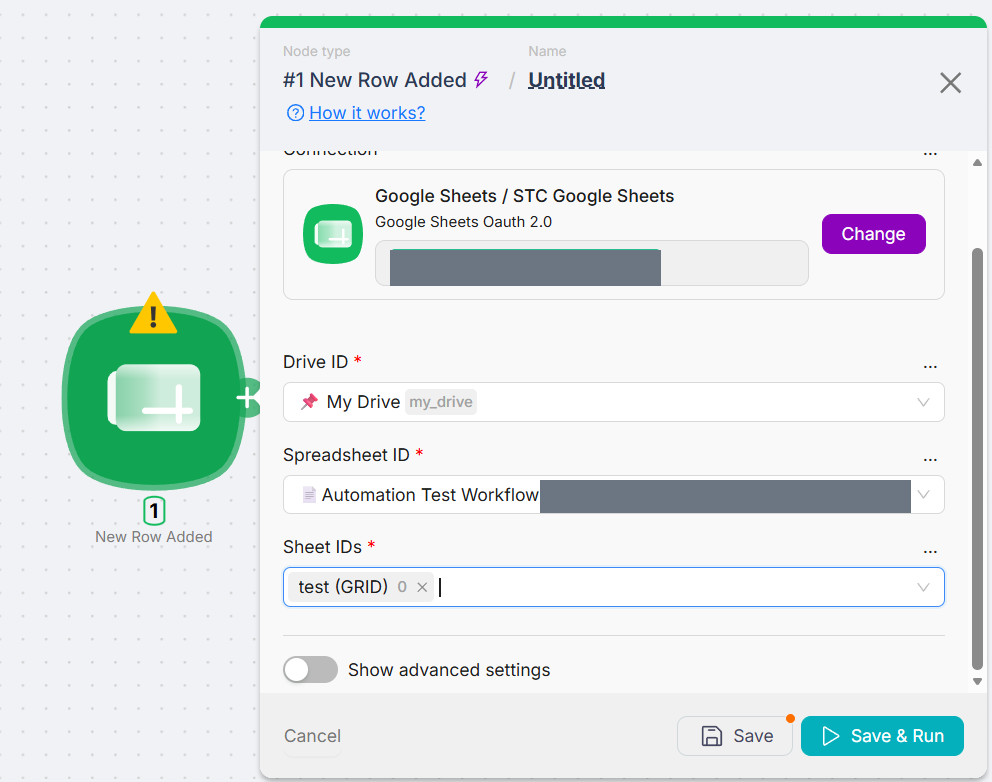
Connecting the account was an OAuth flow: pick the Google account, grant access, come back. No API keys, no service-account JSON, nothing to paste. The node then asked for a spreadsheet and a sheet, both as dropdowns populated from our Drive. This is the step where beginners give up in tools that make you register your own Google Cloud project, and here it was a few clicks and a consent screen.
Testing the node showed what it would hand downstream: rowNumber: 2, A: Test User, B: our test Gmail address, C: Hello from Latenode — each column as its own field rather than one string we would have had to split.
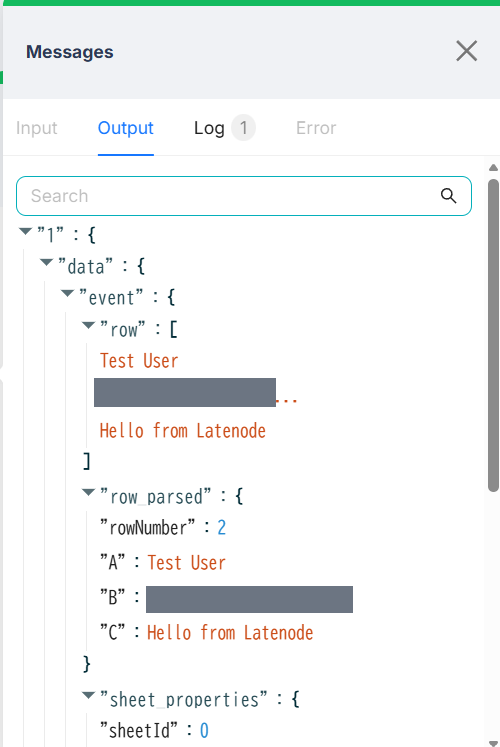
rowNumber plus each column as its own field under row_parsed. The grey bars cover our test email address.Adding the Gmail Send Email Node
Gmail went in as the second node with the Send Email action. The Google connection was another OAuth round — Latenode treats the Sheets and Gmail authorisations as two separate connections, worth knowing if you are counting against the free plan’s limit of 10.
The node offered To, Subject and Email Body. We typed Latenode Test into the subject by hand. The other two had to come from the sheet, and that is where the test got interesting.
The Hardest Part: Mapping Sheet Columns to Gmail Fields
Our instinct was to type something into the To field — a placeholder, a curly brace, anything that would offer an autocomplete. That is not how it works.
The route is a Data panel on the right-hand side. You open it, expand the earlier node’s output, find the field and click it; Latenode inserts a reference into whichever field has focus. After doing that twice, the two fields read $1.data.event.row_parsed.B for To and $1.data.event.row_parsed.C for Email Body.
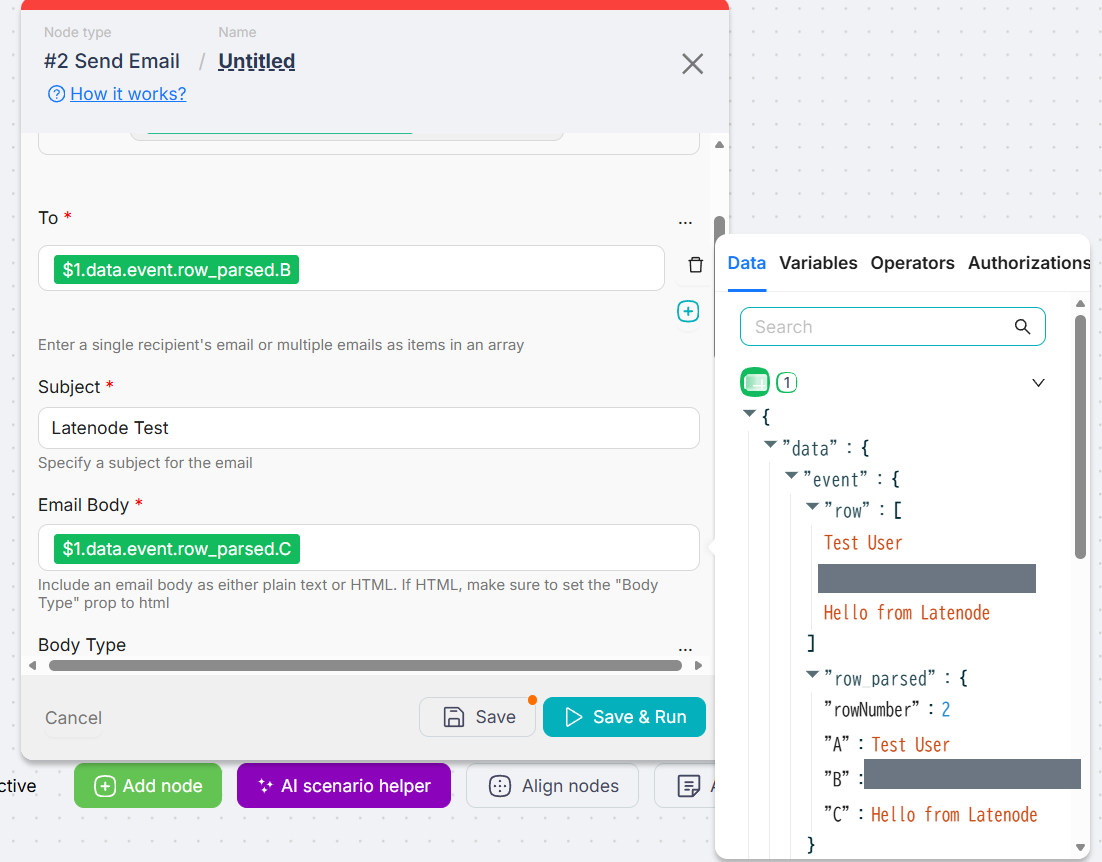
$1.data.event.row_parsed.B into the To field. The grey bars on the right cover our test email address.Read the reference and it is perfectly logical: $1.data.event.row_parsed.B means the first node’s output, walked down to the parsed value in column B. Mapping a third field would have taken seconds. The problem is the first time — nothing in the To field suggested the answer was in a panel elsewhere on the screen, and what lands in the field is written for the engine rather than for the person reading it. This is the one place in the whole test where we would have been stuck without going looking. We are describing our own first attempt, not measuring how long a typical beginner takes, but it is the friction we would warn a friend about.
One consequence follows from how the reference is written rather than from anything we broke: it points at a column letter, so inserting a column into the sheet later will silently aim the automation at different data.
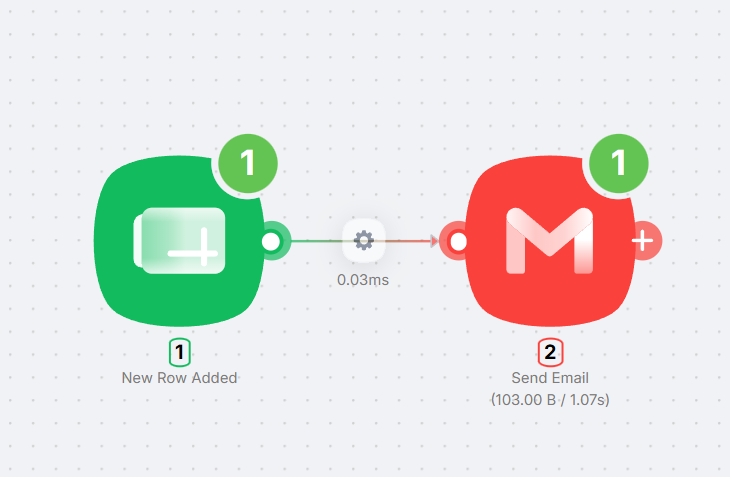
Did It Work? Our First Test with Run Once
Latenode has a Run once button that arms the workflow for a single execution. We pressed it and added a new row to the sheet.
The trigger picked up the row, the Gmail node ran, and the email arrived in the inbox we had put in column B — with the body from column C, not a template or a placeholder but the actual cell contents.
What Run once does not prove is that the automation will run when nobody is watching. That is a different test, and it is the one that went wrong.
Deploying the Automation
Latenode separates the version you are editing from the version that runs. We pressed Deploy and switched the workflow to Active, after which the interface showed Prod v.4 and Dev v.4 — the same version on both sides.
We like that split: the two version numbers tell you at a glance whether what you are looking at is what is running. In our test they never diverged — we deployed and ran the same version — so we did not see what happens when an edit sits in Dev while an older version runs in Prod.
Then we added a new row without pressing anything in Latenode.
The Error We Hit in Production — and the Run That Worked
It picked the row up. It also failed.
The run history showed a production execution with status Error, Duration 2s, CPU-sec 2, Operations 2. The failure was on node #2 Gmail / Send Email:
exec command error: request to pd server error: Recipient address required
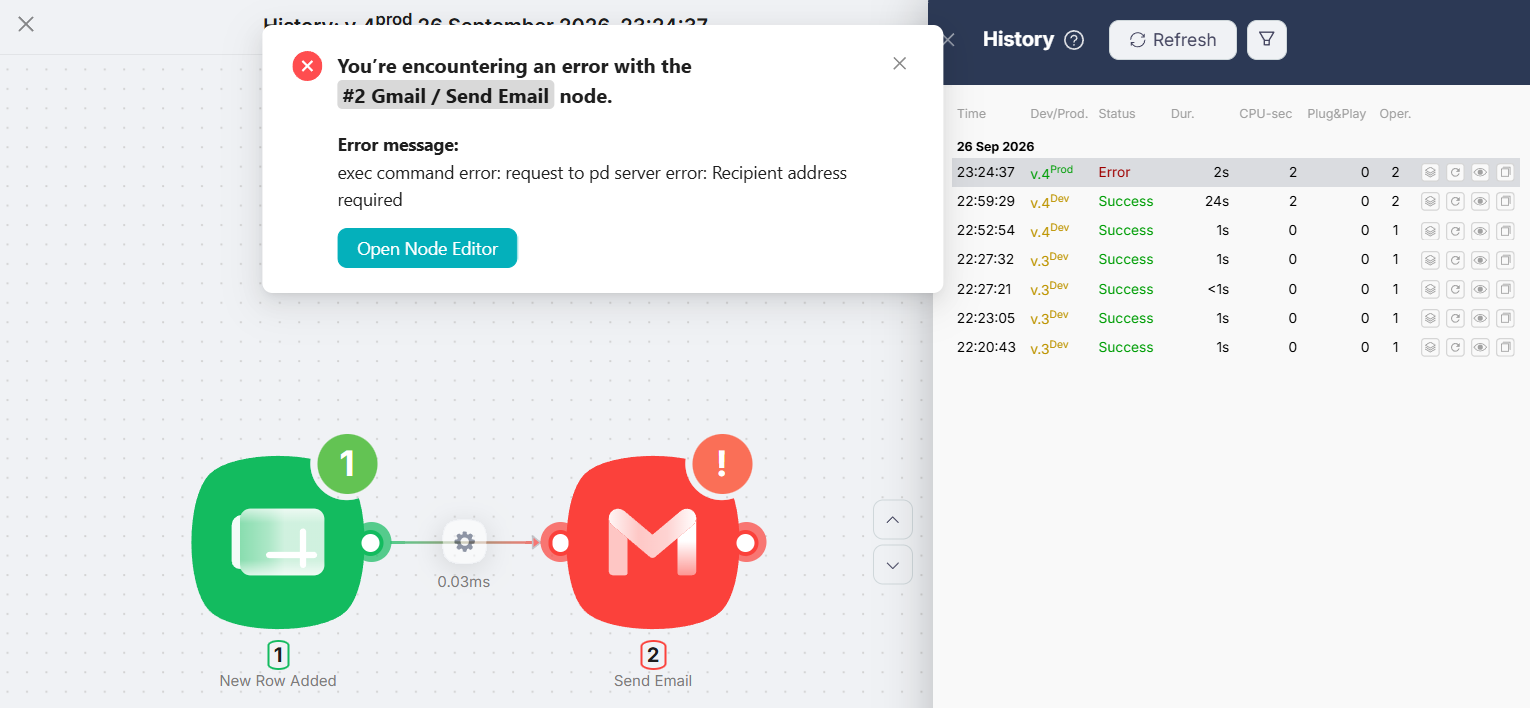
Gmail had been handed an empty To. The mapping had not changed since the successful manual test, so the reference was resolving to nothing rather than to the wrong thing.
What we had done differently was enter the row cell by cell — name, then email, then message. The trigger we used is the instant version of New Row Added, which Latenode’s documentation describes as the kind where “the external service pushes the event to your scenario’s webhook the moment it happens.” One explanation that fits is that it fired as soon as the row existed and before column B had been filled, so $1.data.event.row_parsed.B had nothing in it when Gmail ran.
We did not confirm that. We did not go back and reproduce the failure by typing slowly, so we cannot tell you it is the cause — only that it is the explanation consistent with what we saw, and that the alternatives we could think of are harder to square with a mapping that had just worked.
So we tested the fix: on the next row we pasted all three cells at once, so the row existed complete from the moment it existed at all.
The production run succeeded — Environment Prod, Status Success, Duration 1s, CPU-sec 2, Operations 2 — and the email arrived in Gmail with the subject Latenode Test and the body Latenode deployed test, sent by a workflow we were not watching and had not triggered by hand.
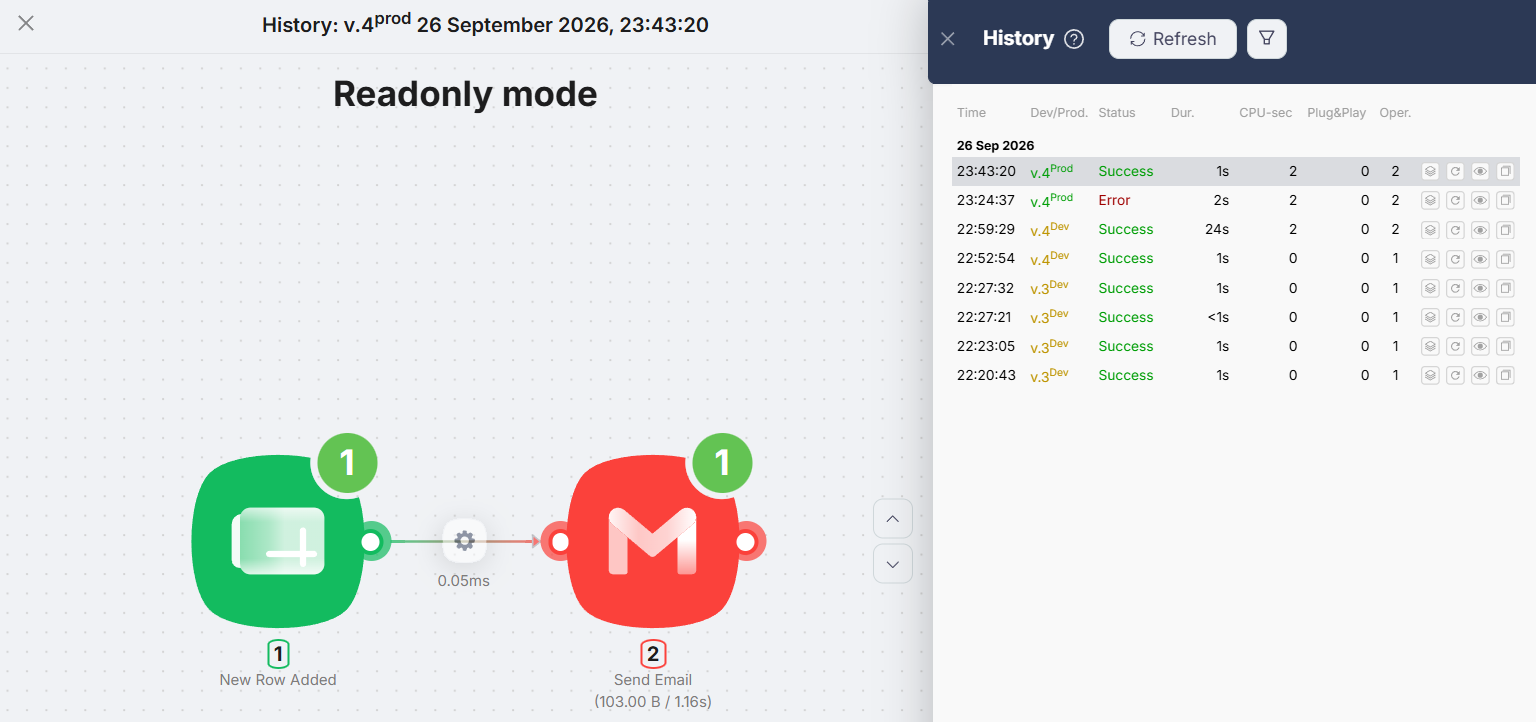
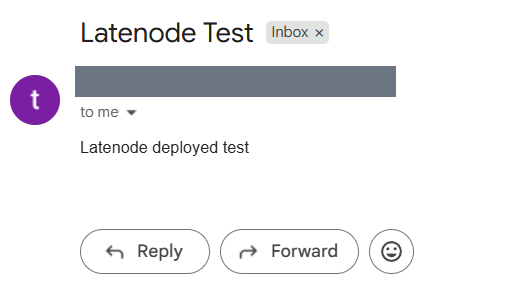
Two things are worth taking from that failure. A row that is still being typed may be enough to fire an instant trigger — a data problem no automation tool can see for you, and the kind of thing that will catch anyone building a “just type it into the sheet” workflow. And the history named the failing node and quoted the provider’s own error text, which was enough to form a hypothesis in one reading. What is not worth taking from it is any general claim about how Latenode handles errors: we hit exactly one, we did not establish what caused it, and one error is not a test of error handling.
Latenode Pricing and Free Plan
Latenode’s pricing is unusual for this category: on its main pricing page it presents Free and pay as you go rather than a ladder of subscription tiers. A separate lifetime deal and optional capacity add-ons exist alongside them, and we come back to the lifetime deal below. Every figure in the table that follows comes from Latenode’s pricing page, checked on September 27, 2026.
| Item | Free | Pay as you go |
|---|---|---|
| Price | “$0/month forever” | No base fee; you pay for runtime |
| CPU seconds included | “10,000 CPU seconds every month” | 10,000 included, then usage rates |
| Rate after the allowance | — | $0.00012 per CPU second (10,001–100,000), falling by tier to $0.00005 (5,000,001+) |
| Active workflows | 5 | Unlimited |
| Connected authorisations | 10 | Unlimited |
| Run history kept | 3 days | 30 days |
| Minimum polling interval | 10 minutes | 10 minutes |
| Execution time limit per run | 3 minutes | 10 minutes |
| Parallel workers | 1 | 5 |
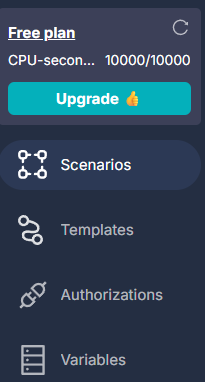
We confirmed the free plan’s allowance against our own dashboard. The pay-as-you-go rates below are quoted from Latenode’s pricing page; we stayed on the free plan throughout.
Two free limits are easy to miss and both would have mattered in a bigger test. Three days of run history means a failure you notice on Monday may already be gone if it happened on Friday. Five active workflows is a real ceiling once you build one automation per client.
What Our Test Cost in CPU Seconds
What we measured. Before we started, the account showed 10,000 / 10,000 CPU seconds. After building the workflow, testing nodes, running it manually, deploying it, failing once in production and succeeding once, it showed 9,998 / 10,000. The run history listed CPU-sec 2 against the failed production run and CPU-sec 2 against the successful one.
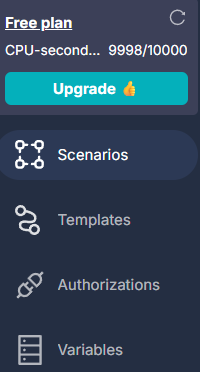
Those numbers do not reconcile, and we are not going to pretend they do. The history lists three runs at 2 CPU seconds — one manual, one failed production run and one successful one — which is 6, but the balance moved by 2. We cannot tell from the dashboard which executions were actually billed, and we did not determine why. So we will not tell you that a whole session of building and testing cost 2 CPU seconds, even though a screenshot of the balance appears to say exactly that.
Part of the gap is explained by Latenode’s documentation, which states that “running a single node does not consume CPU seconds, so you can test and configure nodes on the canvas for free” and that the “minimum billable execution time is 1 CPU second per run” on the free plan. Our own history agrees with that: every row showing Operations 1 — a single node run on its own — is listed at CPU-sec 0, while every row showing Operations 2, the whole two-node chain, is listed at 2. That explains why configuring the workflow was free. It does not explain the gap between 6 and 2.
What we can say is narrower and still useful: one successful production run of a two-node workflow was listed at 2 CPU seconds. Once the allowance is gone, each CPU second is billed at the published rate of $0.00012, so a run of this size costs well under a US cent. For a form response, a new row or an invoice notification, the free plan is not a teaser.
Our Latenode workflow used an instant trigger rather than a polling one: the service pushes the event to the scenario’s webhook, which the documentation describes as running “in real time, with virtually no delay”. The free plan’s 10-minute Trigger interval is the setting that governs polling triggers.
The Lifetime Deal, and What Its Credits Are Worth
Latenode also sells a lifetime deal, which on our check date listed three one-time tiers at $497, $1,247 and $2,447, with 20, 50 and unlimited active workflows respectively.
Its allowances are quoted in Execution Credits — 3,000, 10,000 and 20,000 a month — rather than in the CPU seconds the main pricing page uses. The two do convert, and both pages say so: the lifetime-deal page states that “30 seconds of execution time equals 1 Credit”, and Latenode’s billing documentation says that for a lifetime deal “1 credit equals 30 CPU seconds, including the usual minimum charge per execution”. The lifetime tiers are therefore quoted in a different unit from the pay-as-you-go page.
The part worth reading twice is the minimum charge, because it is where the two units stop behaving alike. The lifetime-deal page lists “Min. execution charges: 1 execution credit (30 sec)”, while the free plan’s documented minimum is 1 CPU second. A run the size of ours — 2 CPU seconds — costs 2 of the free plan’s 10,000, but a whole credit of a lifetime tier’s 3,000.
What the lifetime deal buys is not a larger allowance in the same unit: it is 20 active workflows instead of 5, and the other ceilings that come with it. The minimum charge is the part to check against your own automations — a short run is rounded up to a whole credit on a lifetime tier, and billed by the second on the free plan.
What We Liked
- Google connected without a detour. Two OAuth flows, no Cloud project, no credentials to paste.
- The trigger handed us clean, addressable data.
rowNumberplus each column as its own field. - Dev and Prod are separate, and visible.
Prod v.4andDev v.4side by side told us exactly what was live. - The one failure was legible. The history named the failing node and quoted the provider’s error verbatim — enough to form a hypothesis in one reading.
- Configuring nodes did not burn the allowance. Latenode documents single-node runs as free, and our balance is consistent with that.
- The free plan runs deployed automations. Not a read-only trial — it ran unattended and delivered a real email.
Where Latenode Falls Short
- Data mapping is not discoverable. The one hard step in the build was hard only because the interface does not point at the Data panel.
- Mappings are written for the engine.
$1.data.event.row_parsed.Bis precise and unreadable. Six months later that field does not tell you it means “the customer’s email address”. - Column letters are a fragile contract. The reference points at B rather than at a header name, so inserting a column will quietly redirect the automation.
- Three days of run history on the free plan. Short enough that a weekend failure can disappear before you look.
- The billing unit is hard to predict before you build. Per-step pricing you can forecast by counting steps; CPU seconds you learn by running the thing — and our own dashboard reading did not reconcile cleanly with the run history.
- Two pages, two units. CPU seconds on the pricing page, Execution Credits on the lifetime-deal page. They convert at a documented 30 CPU seconds to the credit, but the minimum charge per run does not — 1 CPU second free, a whole 30-second credit on a lifetime tier — so the two allowances cannot be read side by side.
Who Latenode Is Best For
Freelancers and solopreneurs who want real runtime without a subscription. We built, deployed and ran a working automation without entering a card, and the deployed run was listed at 2 of 10,000 monthly CPU seconds. If your automations are short and occasional, the free plan is somewhere to work rather than somewhere to evaluate.
People whose workflows are short but have many steps. This is the structural argument for CPU-second billing and it comes from the published model, not from a test we ran: if you are charged for runtime, a fifth and sixth node on a workflow that still finishes in a second costs almost nothing. We ran two nodes, so we are reasoning rather than measuring.
Anyone comfortable reading a variable path. If $1.data.event.row_parsed.B reads as a sentence rather than as noise, the single rough edge in this test is not a rough edge at all.
Who Should Skip Latenode
Anyone who needs mapping to be obvious. If you want to click a field and see a labelled list of “Name / Email / Message” under your cursor, the Data panel will feel like a detour every time. That is the honest trade for the free allowance.
Anyone who needs more than three days of run history without paying, or anyone running more than five live automations — both are free-plan ceilings, and one automation per client reaches the second one quickly.
Anyone who has to forecast the bill before building. If you need to tell a client what an automation will cost per month before it exists, a per-step model is easier to reason about than a runtime meter.
Latenode Alternatives
We have run the same kind of hands-on test on the other tools in this category, and the useful comparison is the shape of the billing rather than which one wins. Make and Zapier both charge per step — operations in Make, tasks in Zapier — which makes a monthly bill easy to forecast and long workflows expensive. Latenode charges for runtime, inverting both. n8n is the closest in spirit if you like seeing the plumbing, and Pabbly Connect is the budget-first option in the group.
What we are deliberately not doing is putting numbers side by side for most of these. The exceptions are Make and n8n. We have since built the same Google Sheets to Gmail workflow in both, and our Latenode vs Make comparison sets two clean runs against each other — both on free plans, both run unattended — while saying plainly that a credit and a CPU second are still counted differently. Our Latenode vs n8n comparison is the same workflow again, on conditions that do not match: Latenode on its free plan, n8n on the n8n Cloud trial, and only the Latenode side deployed and watched running unattended. Make is the only free-plan-to-free-plan pair we have. For the others, the billing units are not comparable quantities — a CPU second, an operation and a task are counted differently, so their monthly allowances cannot be ranked by size. When we say Latenode’s free allowance is generous, we mean it covered our test comfortably, not that we have measured it against a competitor’s.
Our hands-on reviews: Make.com, Zapier, n8n and Pabbly Connect.
Final Verdict
Latenode did the thing we asked of it. On a free account, in one session, we connected a Google Sheet to Gmail, deployed the workflow, and received a real email triggered by a real row without touching the platform.
It passed with one stumble that was most likely about how we entered the row, and that stopped happening once we entered it differently. One error is not a test of error handling, so we claim nothing general about that — only that this one was legible.
Two judgements, with their grounds. The free plan is usable rather than decorative — because our deployed run was listed at 2 CPU seconds against a documented monthly allowance of 10,000, and because the plan permitted a deployed, active workflow at all. The data mapping is the part most likely to slow a beginner down — because it was the only step in our build we could not complete by following the interface.
What we cannot tell you is what happens when this runs a hundred times a day for a month, what the AI and code nodes are like, or what support is like when something breaks. Until we run those tests, this review covers exactly one workflow, built and deployed on September 26, 2026.
If your automations are short, occasional and yours to maintain, Latenode’s free plan is worth an hour. Budget most of that hour for the mapping.
FAQ
Is Latenode free?
Yes. The pricing page lists a plan at “$0/month forever” with 10,000 CPU seconds a month, 5 active workflows and 10 connected authorisations. We ran this whole test on it, including a deployed automation that sent a real email, without entering payment details.
What are CPU seconds in Latenode?
They are Latenode’s billing unit: compute time while your workflow executes, rather than a count of steps. The documentation says CPU seconds are “consumed during a scenario execution (from start to finish of the run)”, that running a single node on the canvas is free, and that the minimum billable execution is 1 CPU second per run on the free plan.
How many CPU seconds did your automation use?
The run history listed 2 CPU seconds for one successful production run of our two-node workflow, at a duration of 1 second. Our balance moved from 10,000 to 9,998 across the session, which does not reconcile with three logged full-workflow runs at 2 CPU seconds each — so we report the single-run figure and not a session total.
Does Latenode have paid plans?
Not as subscription tiers. On our check date the pricing page listed only Free and pay as you go, with no base fee and tiered rates starting at $0.00012 per CPU second after the first 10,000. There are optional capacity add-ons, plus a separate lifetime deal quoted in Execution Credits, which the billing documentation converts at 1 credit to 30 CPU seconds.
Why did the automation fail with “Recipient address required”?
Gmail received an empty To field. Our mapping pointed at column B, and column B was empty at the moment the trigger read the row — we had been typing the cells one at a time. Entering the whole row at once fixed it. We did not deliberately reproduce the failure, so this is the likely cause rather than a confirmed one.
How do you pass a Google Sheets value into another node in Latenode?
Open the Data panel on the right of the editor, expand the earlier node’s output, and click the value you want. Latenode inserts a reference into the focused field — in our case $1.data.event.row_parsed.B for column B. Typing into the field directly does not offer the values.
Does the free plan let an automation run on its own?
Yes. We pressed Deploy, set the workflow to Active, and it ran in production without us pressing Run once. We used the instant New Row Added trigger, which Latenode documents as the external service pushing the event as it happens. If you pick a polling trigger instead, the free plan’s documented minimum polling interval is 10 minutes — the pricing page is explicit that this is “the minimum polling frequency for scheduled and app-polling triggers” and that “webhooks still fire instantly”.
Did you test Latenode’s AI agents or code nodes?
No. This review covers one two-node workflow built from standard app integrations. AI agents, the AI app builder, JavaScript nodes, webhooks, HTTP requests, the headless browser and the built-in database were all untouched, and nothing here should be read as an assessment of them.
Sources & Verification
Hands-on test: a SmartToolCompass Latenode account on the free plan, September 26, 2026. No payment and no paid trial at any point. Tested: the instant Google Sheets New Row Added trigger, two Google OAuth connections, a Gmail Send Email action, mapping sheet columns into Gmail fields via the Data panel, a Run once execution, deploying the workflow and setting it Active, one failed production run, one successful production run, delivery confirmed in a Gmail inbox, and the CPU-second figures shown in the run history and the account balance.
Official sources (checked September 27, 2026):
- Latenode pricing page (linked above) — “$0/month forever”, “10,000 CPU seconds every month”, “5 active workflows”, 10 connected authorisations, 3-day run history, a 10-minute trigger interval described as “the minimum polling frequency for scheduled and app-polling triggers” where “webhooks still fire instantly”, 3-minute execution limit, 1 parallel worker, and the pay-as-you-go rates from $0.00012 down to $0.00005 per CPU second
- Latenode docs: what CPU seconds are — “CPU seconds are how Latenode measures compute time when your scenario runs”, “consumed during a scenario execution (from start to finish of the run)”, “running a single node does not consume CPU seconds”, and “minimum billable execution time is 1 CPU second per run”
- Latenode docs: how it works — instant triggers, where “the external service pushes the event to your scenario’s webhook the moment it happens”, versus polling triggers that check on the plan’s trigger interval
- Latenode lifetime deal page (linked above) — the $497 / $1,247 / $2,447 one-time tiers, their active-workflow counts, the monthly allowances quoted in Execution Credits, “30 seconds of execution time equals 1 Credit”, and “Min. execution charges: 1 execution credit (30 sec)”
- Latenode docs: billing — for a lifetime deal, “1 credit equals 30 CPU seconds, including the usual minimum charge per execution”
Not verified by us: pay-as-you-go billing in practice, whether an idle polling check consumes CPU seconds, AI agent nodes, the AI app builder, JavaScript and code nodes, HTTP requests, webhooks, the headless browser, the built-in database, RAG storage, any AI model, behaviour at volume, long-term reliability, support quality, team collaboration and the API. We also did not deliberately reproduce the production failure, so its cause is our best reading of the evidence rather than a confirmed diagnosis.


Comments